Workspace, members and notifications
Manage members and roles, the workspace profile, file retention, connected apps and your notifications.
Members and roles
Settings → Members lists everyone in the workspace and the seats your plan allows. Pending invitations count as seats.
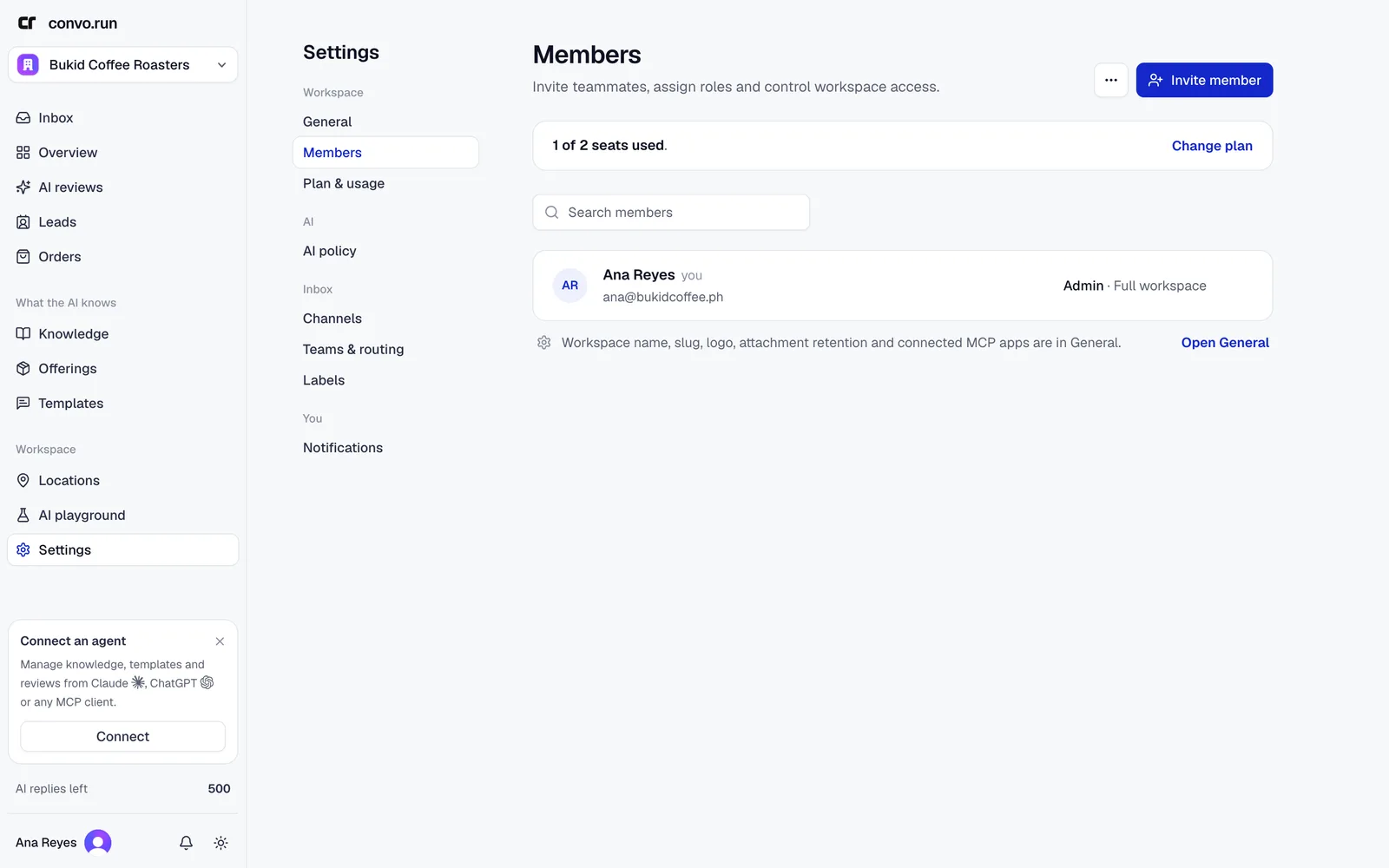
Each member has a role and an access type:
- Owner and Admin manage content, locations, channels, AI settings, teams, members and billing.
- Member works the inbox and uses templates. Admin pages are hidden or read-only.
Access is either Full workspace (the web app) or Convo Agent only (the mobile app, limited to the member's teams' conversations).
To invite someone, choose Invite member, enter their email and pick the role and access. They get an email and join after signing up. From the member list you can change a role, remove a member or revoke an invitation. To leave a workspace yourself, use Leave workspace. Removing a member doesn't change past messages, notes or assignments.
General
Settings → General has the workspace profile, file retention, connected apps and deletion.
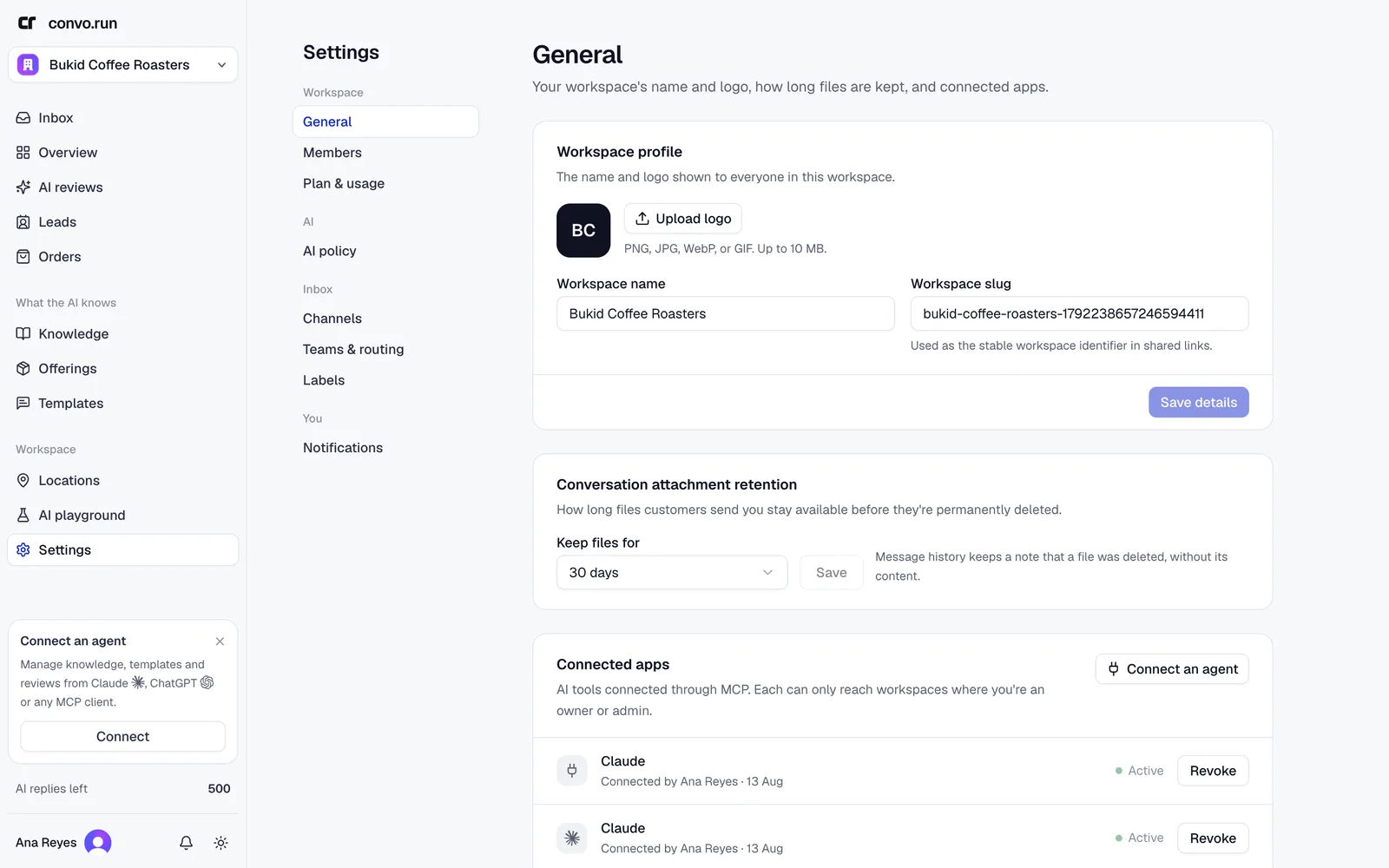
- Workspace profile. The name, slug and logo everyone sees. Logos can be PNG, JPG, WebP or GIF, up to 10 MB. The slug appears in shared links, so change it rarely.
- Connected apps. AI tools connected through MCP. Revoke one here to cut its access. See Connect an agent.
Attachment retention
Keep files for sets how long files customers send stay available: 7, 14, 30, 60, 90, 180 or 365 days. The default is 30. After that, Convo.run deletes the file. The message history notes that a file was there.
Delete the workspace
Delete workspace removes it for every member. You need permission to delete and must type the workspace name to confirm. Disconnect channels and export what you need first. Deleting a workspace is separate from cancelling its plan.
Notifications
Settings → Notifications sets what you hear about, and where: in the app, by email or on your phone. Only your own account changes.
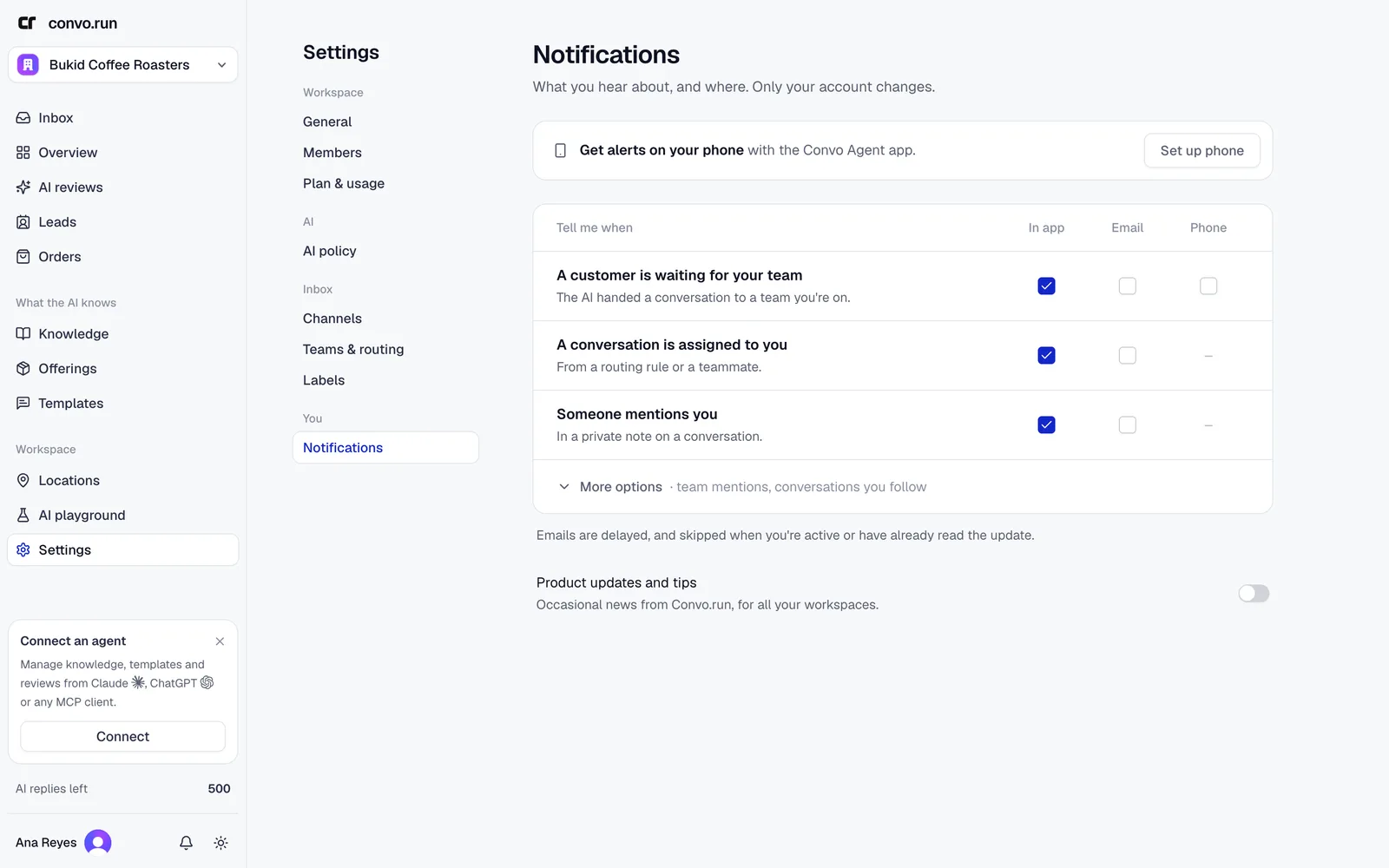
You can be notified when:
- a customer is waiting for your team,
- a conversation is assigned to you,
- someone mentions you or your team,
- a conversation you follow has news.
Emails are delayed, and skipped if you're active or have already read the update.
Convo Agent on your phone
Choose Set up phone to install the Convo Agent app from your phone's browser and turn on push notifications. Teammates with Convo Agent only access use it to answer their teams' conversations without the full workspace.