Inbox
Reply to customers, approve AI drafts, take handoffs and keep track of who owns each conversation.
Inbox lists conversations from every connected channel. Each row shows the customer, the latest message, the location and channel, and who the conversation is waiting on.
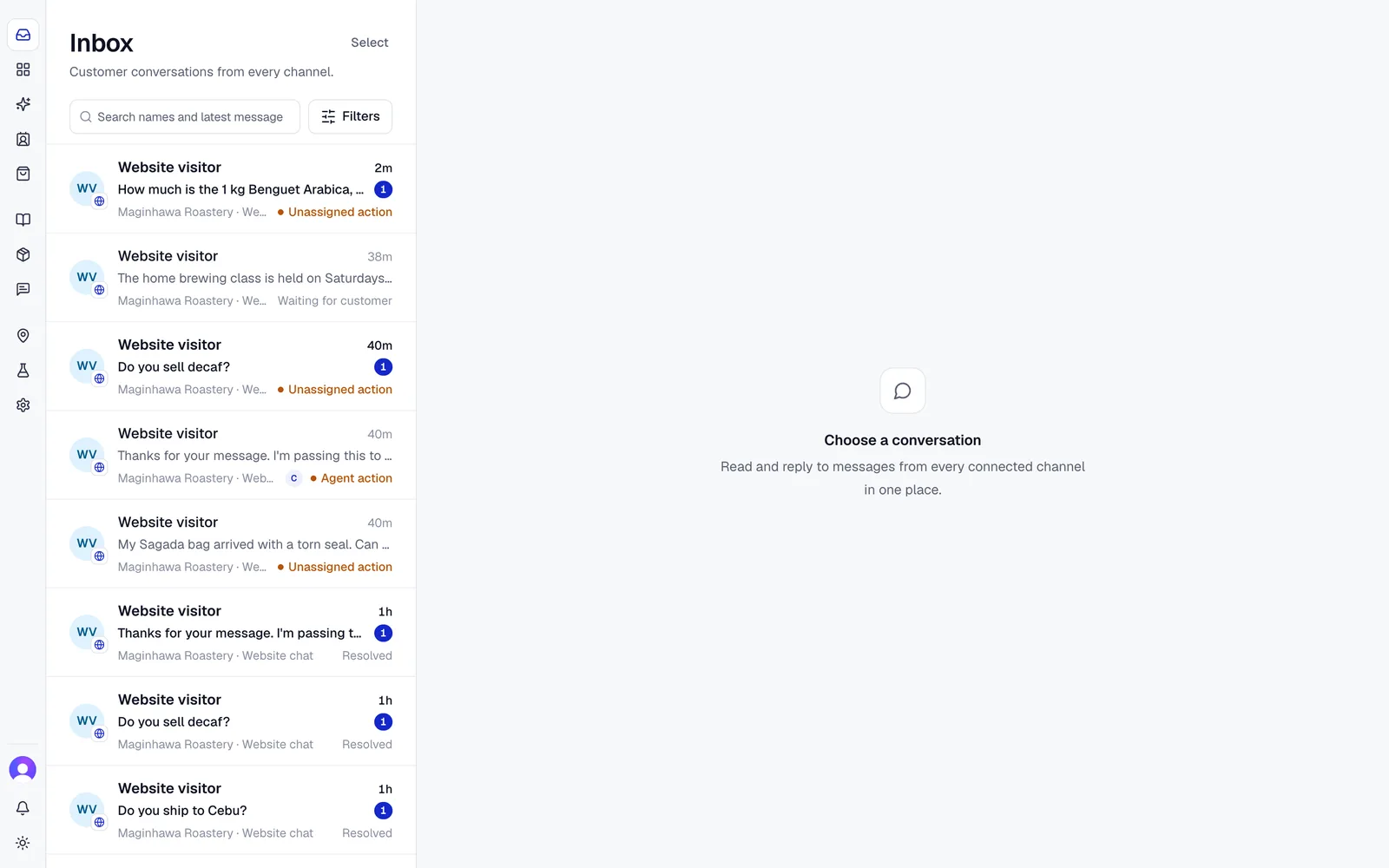
Who a conversation is waiting on
The status at the end of each row tells you what happens next:
- AI handling. The AI is working on it or has answered. Nobody needs to act.
- Unassigned action. The AI handed off or a draft needs approval, and nobody owns the conversation yet.
- Agent action. A teammate owns it and the next reply is theirs.
- Waiting for customer. The last message went to the customer.
Use Filters to narrow the list by who it's waiting on, location, status (Open, Pending, Snoozed, Resolved), assignee, team, priority, label or unread. With sales on, Hot leads only shows hot leads waiting for your team, the longest wait first. The search box has two modes. Conversations searches names and the latest message. Messages searches the full message history.
Approve an AI draft
At a location in AI drafts for the team mode, the AI writes a draft for every customer message. The draft shows how sure the AI is, the reply mode and the sources it used.
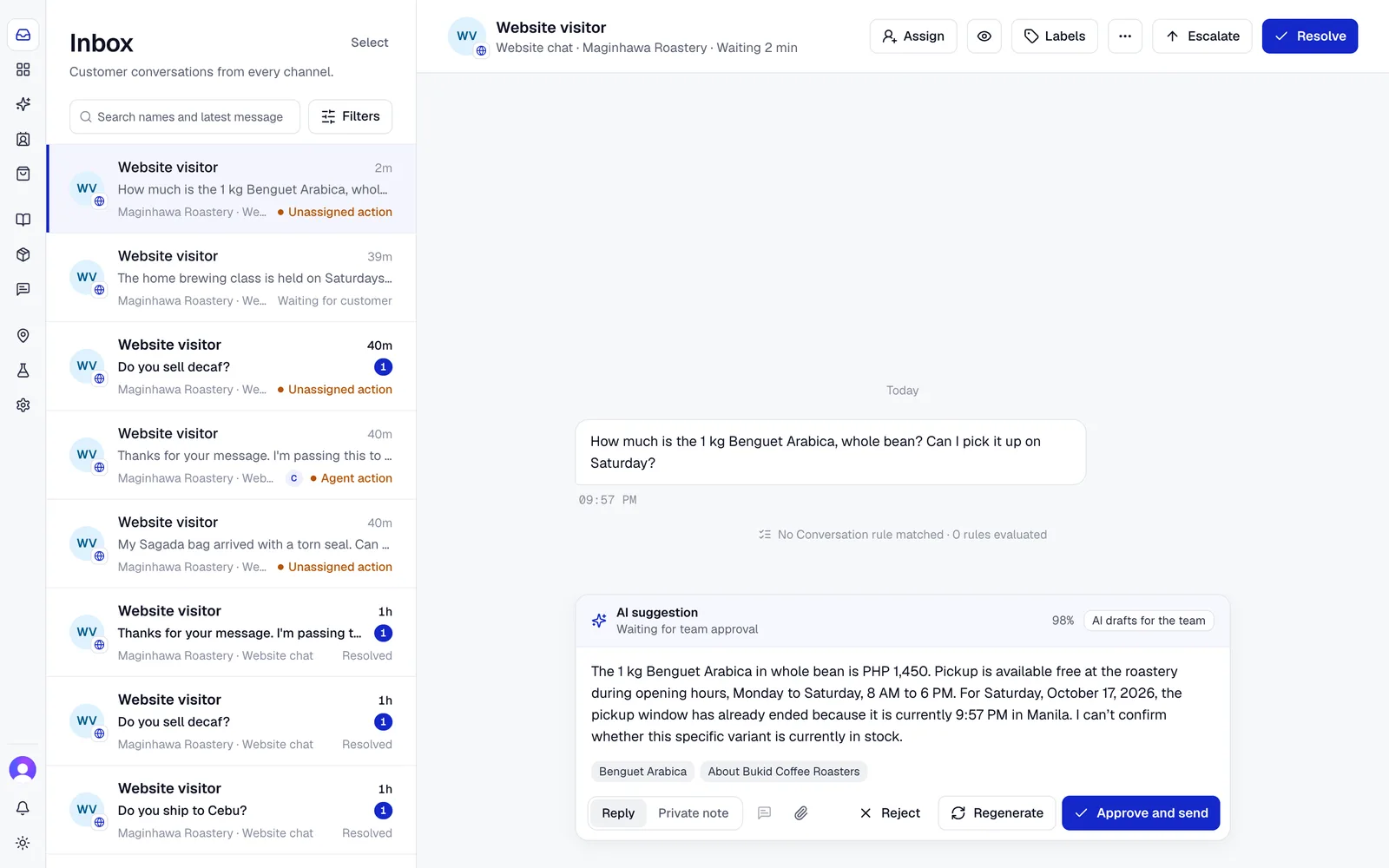
Before you send:
- Check that it answers the customer's latest message, all of it.
- Check the sources. Open one if the answer depends on a price or rule.
- Edit the wording if needed, then choose Approve and send.
Choose Regenerate for a new draft or Reject to write your own reply. What you send is what Convo.run records, even if you edited the draft.
Take a handoff
The AI hands a conversation to your team when the customer asks for a person, when a safety check or conversation rule requires it, or when it can't answer from your content. The customer gets a short message saying the team will continue in the same chat. The timeline shows why the AI handed off.
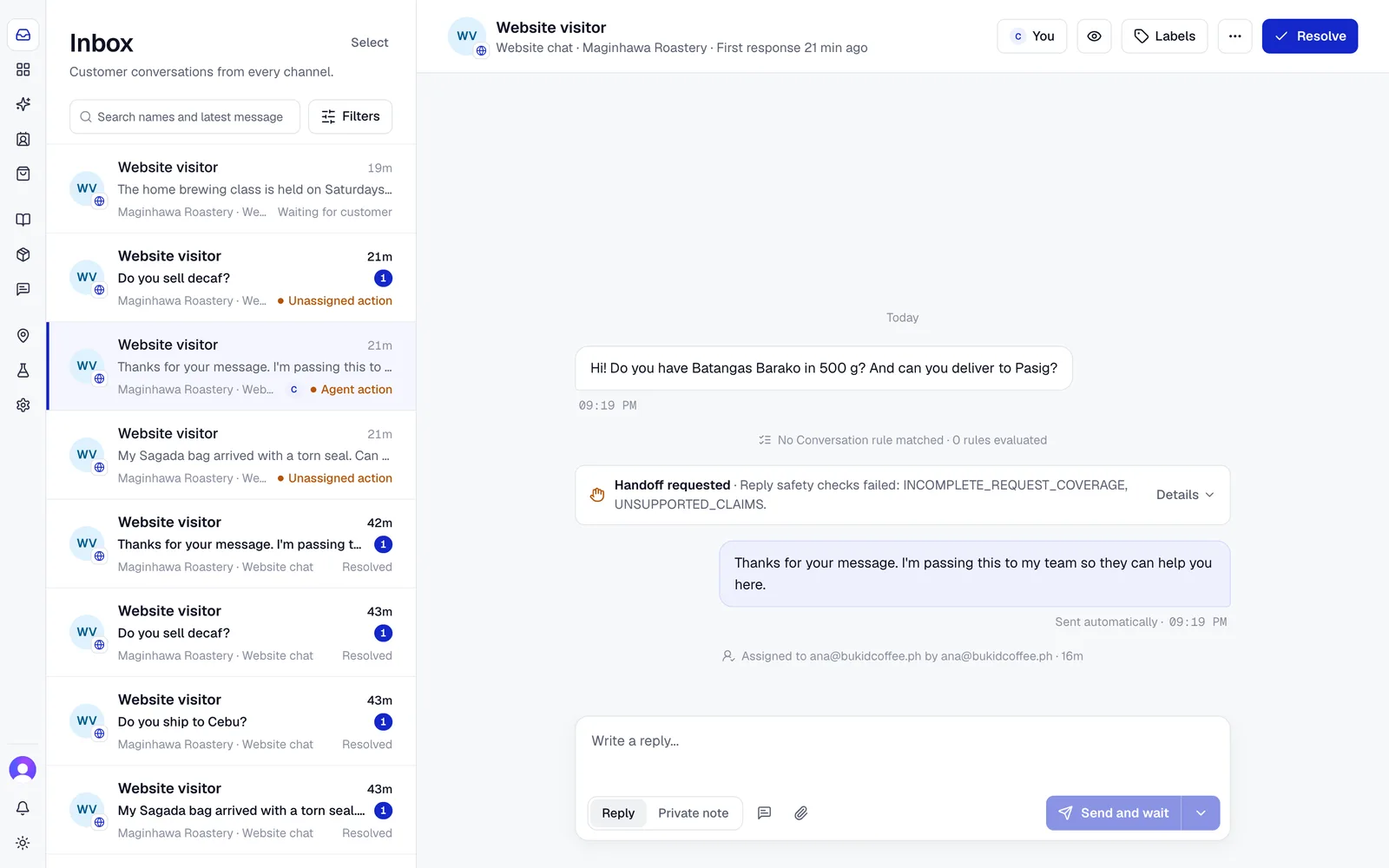
When the AI has no answer, it often asks the customer to confirm the question first. That way your team gets a clear request.
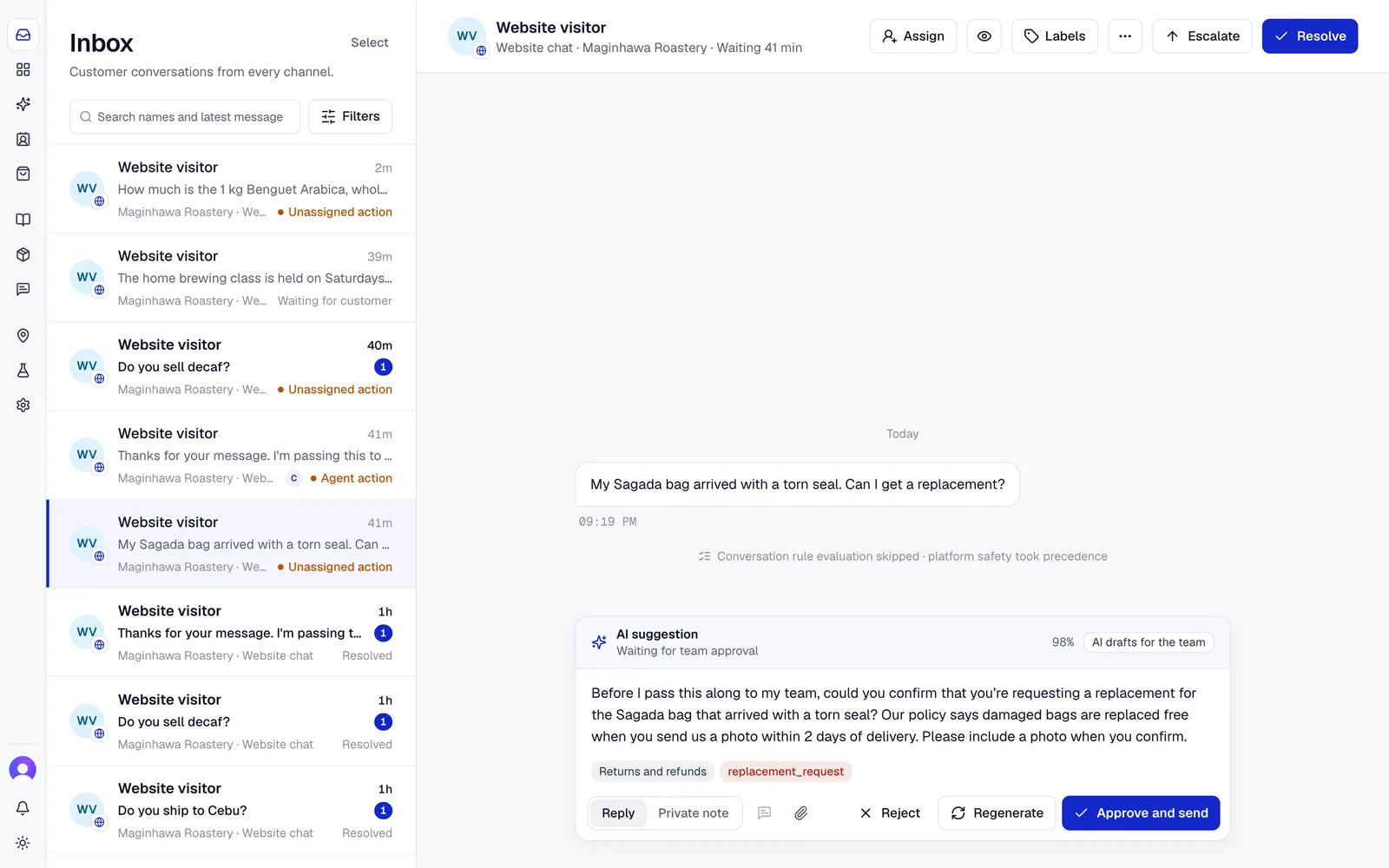
Choose Assign to take the conversation, or assign it to a teammate or team. Use Escalate to raise the priority and Resolve when nothing more is needed.
Reply
The composer has two modes:
- Reply sends a message to the customer.
- Private note is visible only to your team. Type
@to mention a teammate or team.
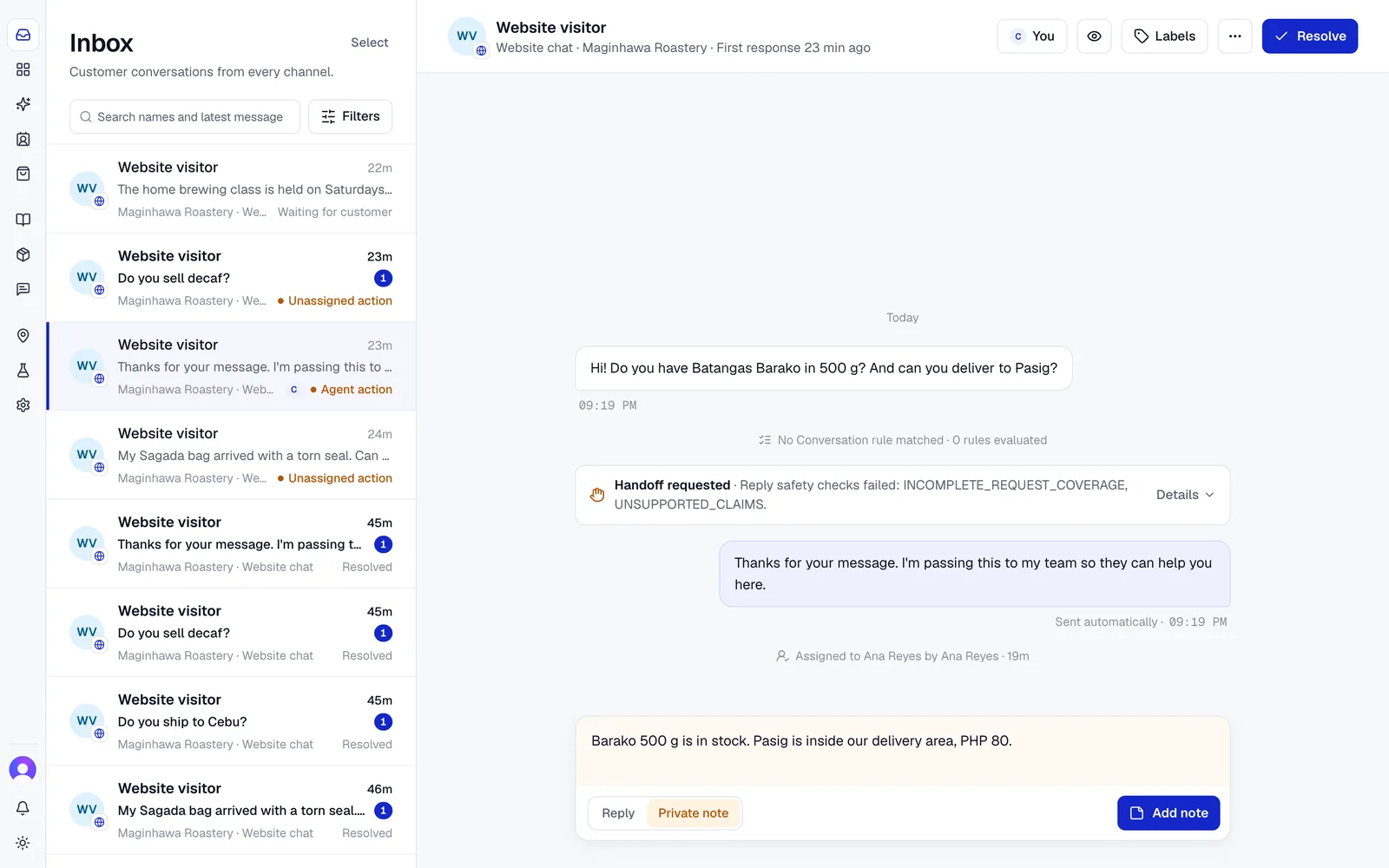
Type / or choose the template button to insert a template. Press
Enter to send and Shift+Enter for a new line.
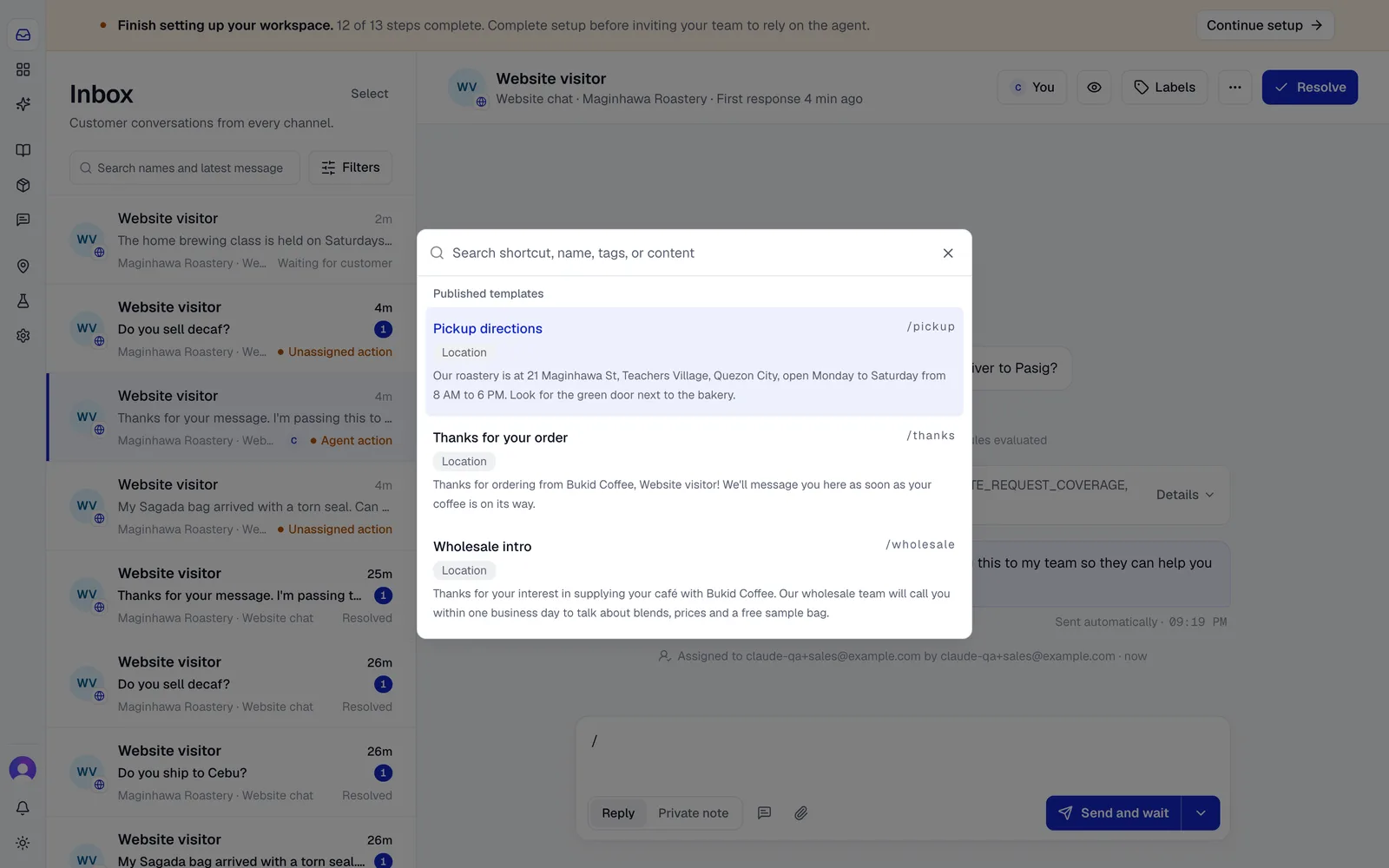
The send button decides what happens after your reply:
- Send and wait keeps the conversation with your team.
- Send and return to AI lets the AI answer the customer's next message.
- Send and resolve closes the conversation.
The location's default is set under Reply and handoff defaults. See Locations.
Attachments
You can attach JPEG, PNG, WebP, PDF and plain-text files up to 20 MB. On email, files can be up to 10 MB each (3 MB from Outlook mailboxes) and 15 MB together. Each file is checked to be the type it claims before it can be sent. Files customers send are also scanned for malware.
Customers can send images, video, audio, documents, spreadsheets and other files on Messenger, Instagram, WhatsApp, TikTok and email. Files up to 25 MB are accepted, and video up to 100 MB. Up to 10 files per email are imported. Files the browser can't preview are kept as downloads. Visitors can't attach files in website chat yet. How long files are kept is set under attachment retention.
Labels, priority and status
- Labels sort conversations, for example by topic or follow-up. A conversation can have up to 10. Labels can also trigger conversation rules.
- Priority is Low, Normal, High or Urgent.
- Status is Open, Pending, Snoozed or Resolved. A resolved conversation reopens when the customer writes again.
Use Follow (the eye icon) to get notified about a conversation you don't own. From the conversation menu, Mark an item sold lowers an offering's stock.
Bulk changes
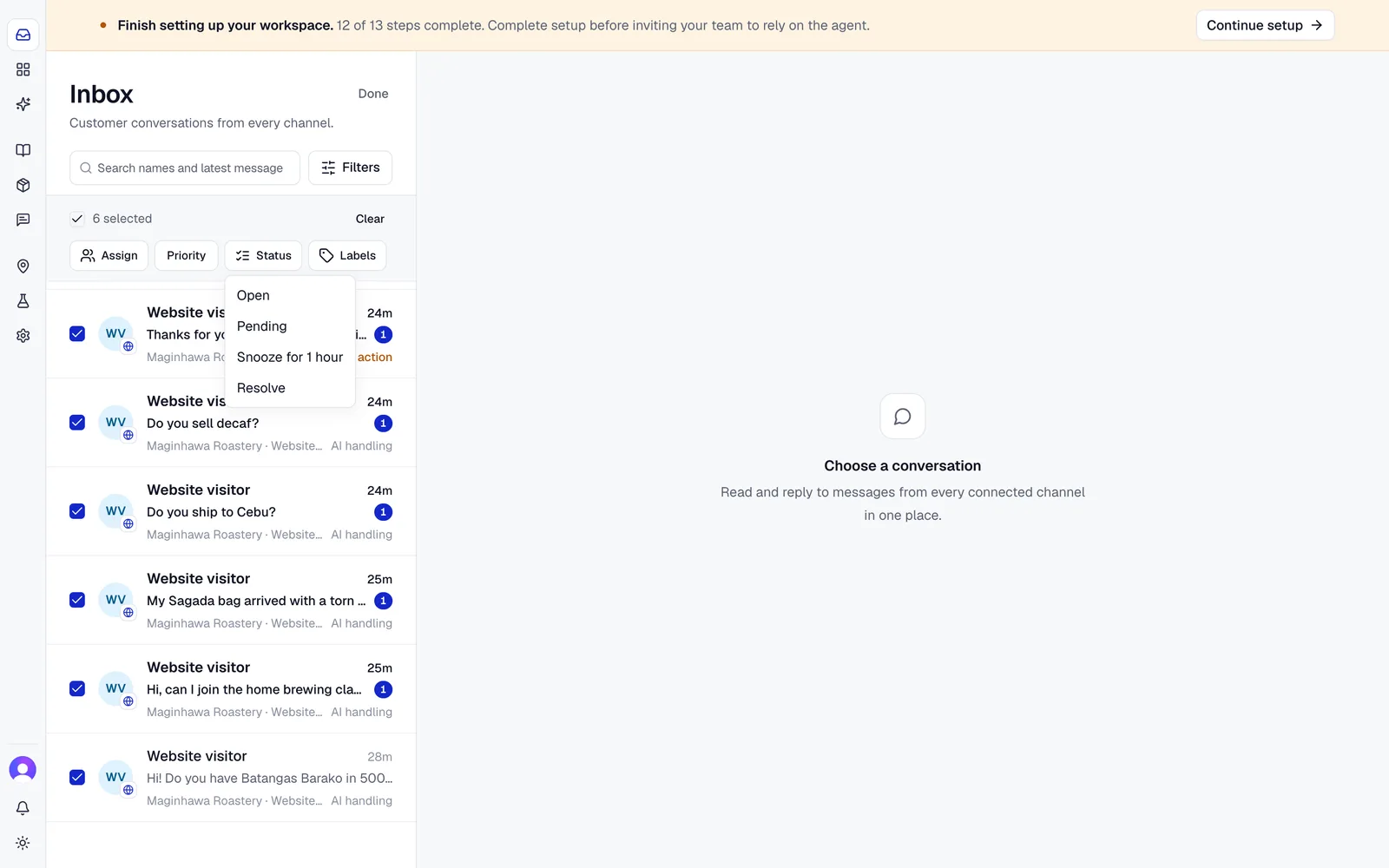
Choose Select, tick the conversations, then change Assign, Priority, Status or Labels for all of them at once. Convo.run reports how many were updated, so check the count if some fail.
Sales conversations
In workspaces that use sales funnels, conversations on the sales route show a sales panel with the funnel, the stage, what the AI found out and who owns the lead. From there you can move a conversation between sales and support, change the funnel, or mark the lead as not a fit or lost.
Each purchase is its own lead. Once a lead is won, lost or not a fit, the AI starts a new purchase when the customer wants to buy again, or you can choose Start new purchase. Contact details carry over. Closed purchases are listed under Earlier purchases. Choose one to open its order or lead.
Conversations from ads
A conversation that started from a Meta ad shows Started from a Meta ad with the ad's title. Point at it, or tap it on a phone, to see the ad's image and full title, with a link to the post.
Delivery safeguards
When a channel doesn't confirm that a message arrived, Convo.run doesn't resend it automatically, because that could send a duplicate. Check the conversation on the channel itself before you unlock replies. If a teammate replied at the same moment as you, Convo.run asks you to confirm before sending.