Offerings
Products, services, stays and packages the AI can quote, with prices, versions, add-ons and stock.
Offerings is your catalog. It's the only place for prices. The AI quotes prices from here, templates insert them from here, and checkout links use them.
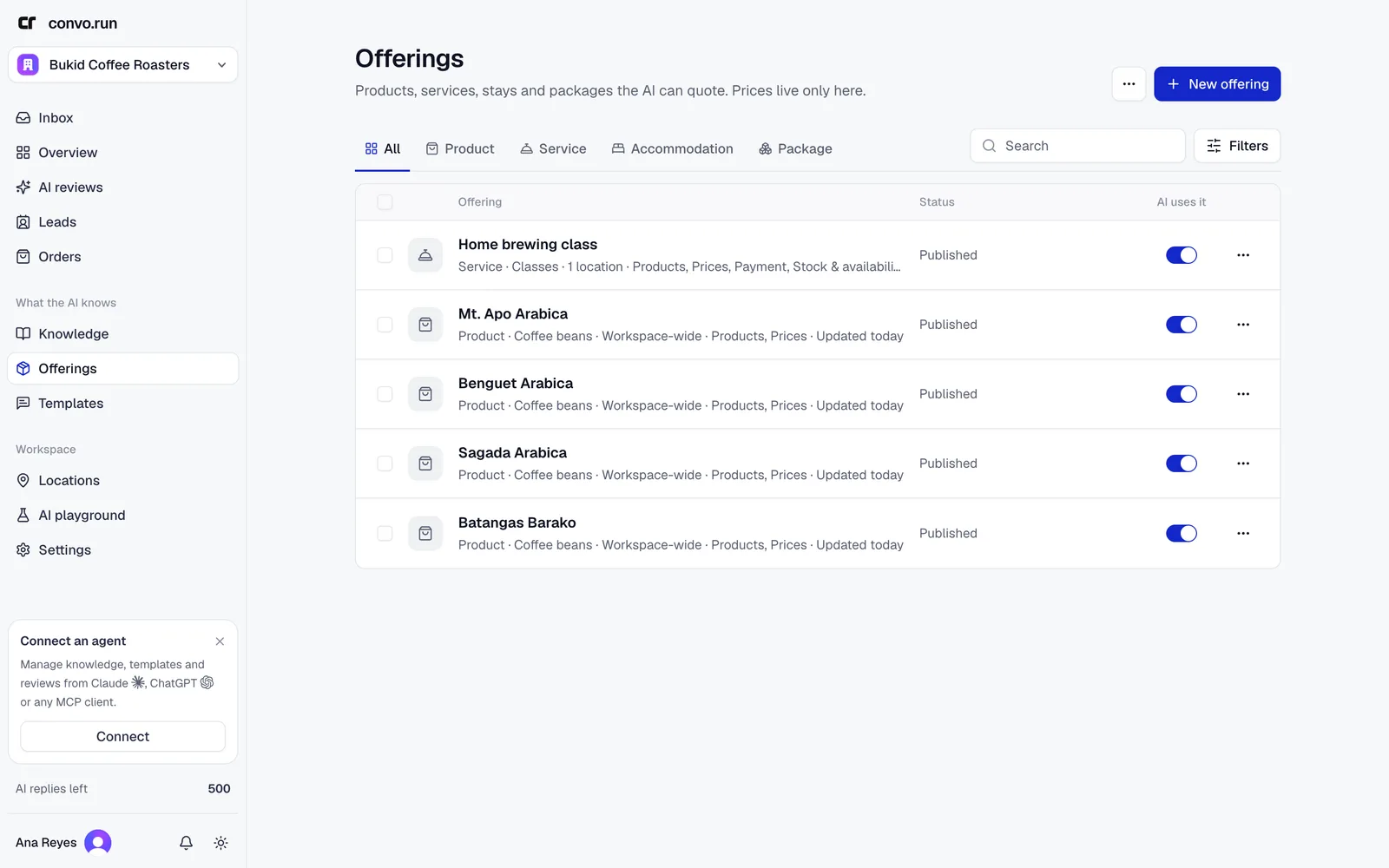
Offering types
- Product. Something you sell, like a bag of coffee or a phone case.
- Service. Something you do, like a class, a treatment or a repair.
- Accommodation. A room or stay, priced with rate plans.
- Package. A bundle sold as one item, priced in tiers.
Create an offering
- Choose New offering, pick the type and enter a name and description.
- Choose whether it's available workspace-wide or at selected locations.
- Fill in the tabs below, then choose Review and publish.
Up to 500 offerings per workspace. Changes stay in draft until you publish them.
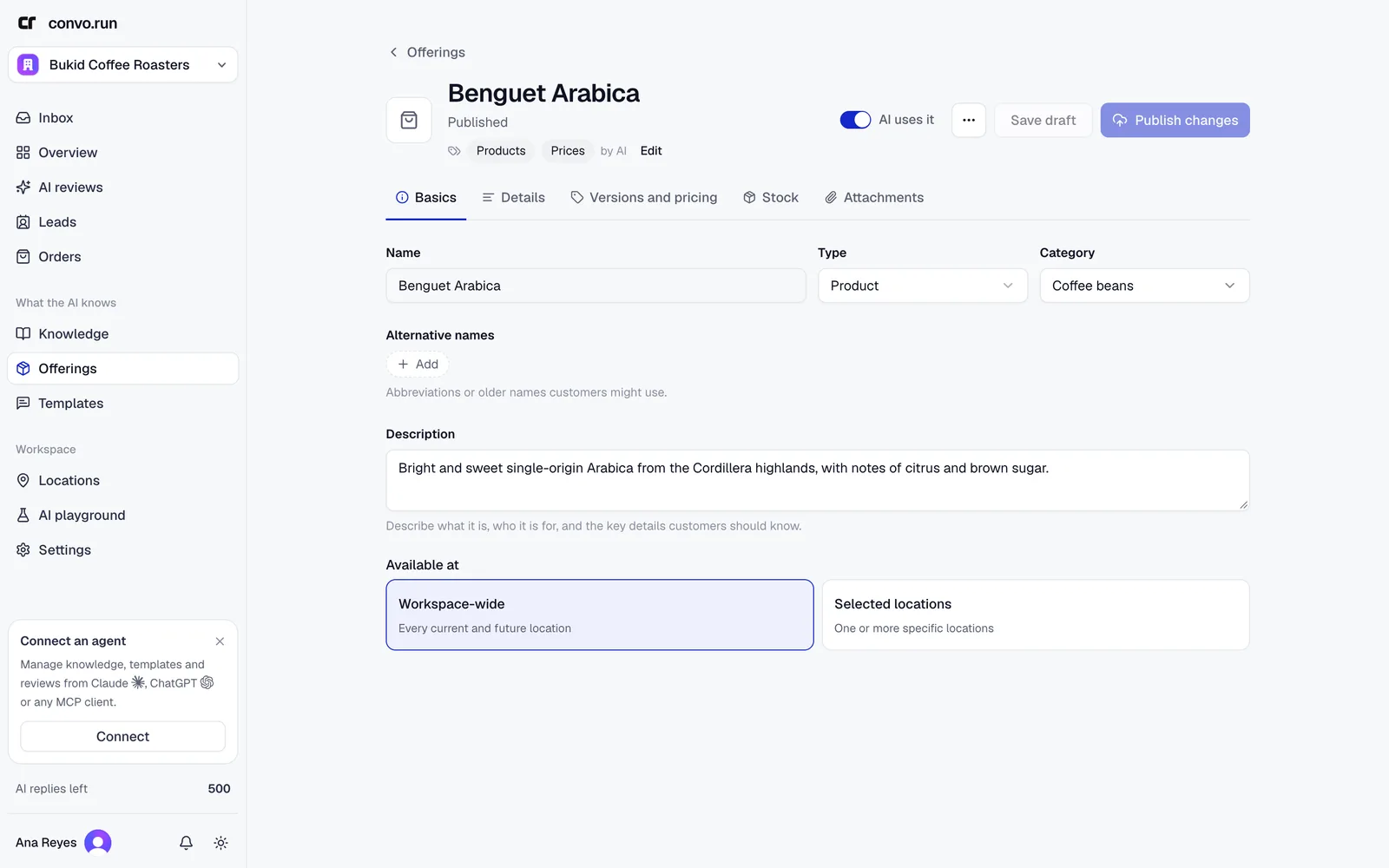
Details
Attributes (such as roast or origin), what's included and not included, eligibility or restrictions, availability guidance, a booking or purchase link, and other names customers use for it.
Pricing
Use Single version for one price, or Multiple versions when customers choose, for example, a size and a grind. Each version can have its own price, SKU and price qualifier, such as "per person". You can generate up to 50 versions from the choices.
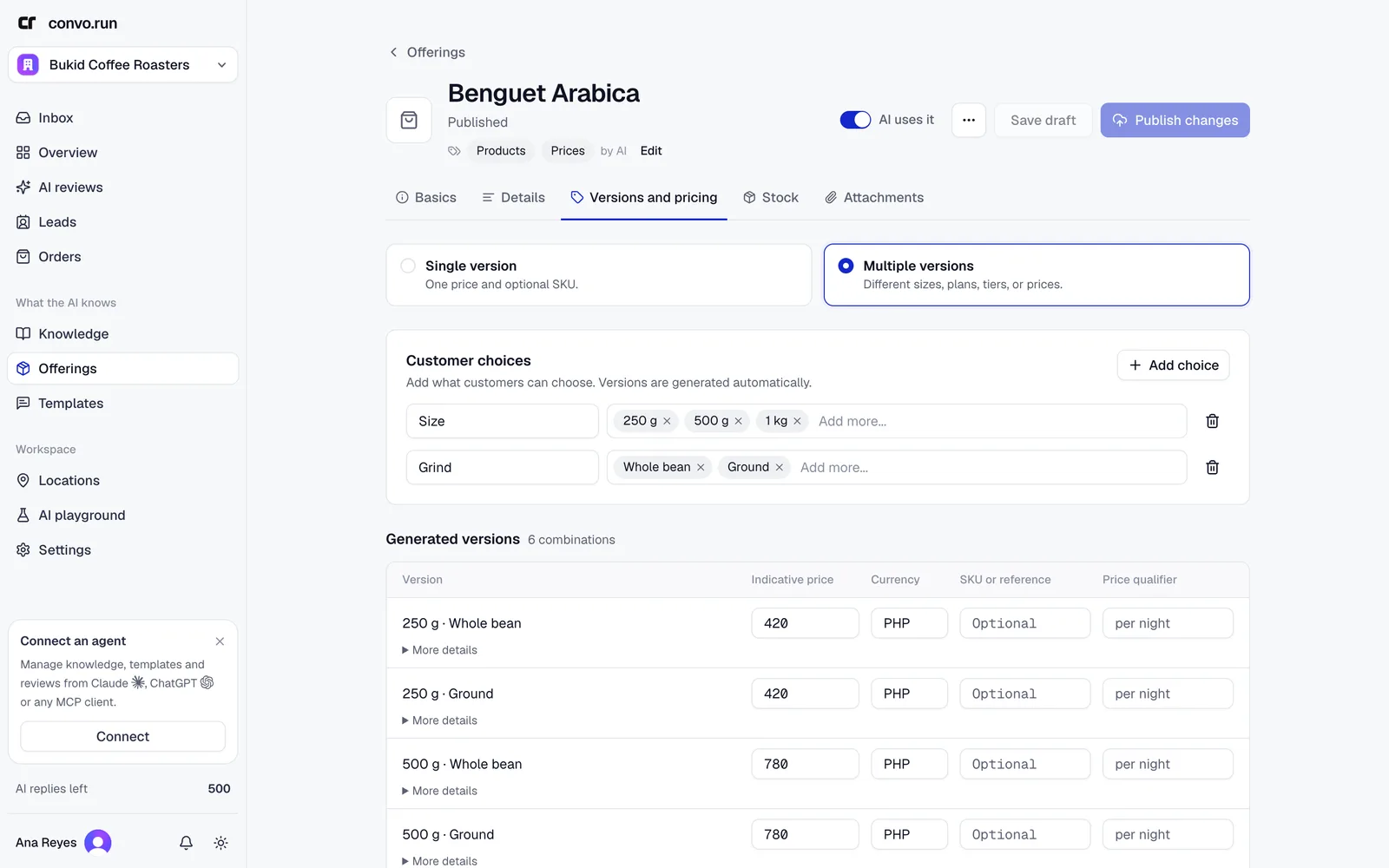
Also on this tab, Optional add-ons: up to 30 extras with their own price, limited to some versions if needed.
Stays and rentals
For prices that cover a block of time, such as a 3-hour or 12-hour stay, enter Hours covered (or Hours this price covers on each version). Extra hours and extra guests are add-ons like any other, charged Per hour or Per person, and Guests included in the price says how many guests the rate covers. Write in Pricing rules how many of each a booking takes, for example "add Extra hour for each hour beyond the rate's hours". In a sales funnel, the AI builds the booking from those rules and gets the total from Convo.run. The AI never adds prices up itself.
Layaway
When a location offers layaway, the pricing tab shows Offer on layaway. Turn it off for items you don't sell on layaway. Leave Layaway price empty to follow your layaway terms, or enter the full price on layaway for that version.
Deposits on offerings are paused. An offering that already has one shows the deposit so you can remove it, but the AI doesn't quote it. For checkout orders, set a deposit on the cash payment method instead.
Stock
Track stock for the whole offering or per version, or leave it Not tracked. Stock changes apply right away, without publishing. Mark sold out sets the count to 0, and the AI tells customers it's sold out. From a conversation, Mark an item sold lowers the count. Checkout takes stock when you confirm an order's payment or a cash order.
For a stay, the count is the number of rooms of that type, and it's never used up. A placed booking holds a room while the guest stays, and gives it back when it's cancelled or the guest doesn't arrive.
- By the night, a room is held from check-in on the first day to check-out on the last. Set the times under Room check-in and check-out on the Rate plans and pricing tab. Empty uses 2:00 PM and 12:00 PM. Check-out has to be at or before check-in. Tell guests the times in Knowledge too: these are only used to check rooms.
- By the hour, like "3 hours tonight at 9 PM", a room is held from the guest's check-in time for the hours its rates cover. Each rate needs its Hours this price covers.
The AI checks rooms when it quotes, and again when the guest books. A stay by the hour without a time takes no room, and your team confirms it.
Attachments
Add up to 5 photos or brochures (JPEG, PNG, WebP or PDF, up to 20 MB each). The AI can send them when a customer asks to see the item.
Prices in other places
Don't repeat prices in knowledge or templates. Templates can insert an offering's live price with a variable, so the wording stays right when the price changes. See Templates.