Checkout and orders
Take orders in the chat with checkout and shop links, collect payment by GCash, QR Ph, bank transfer, cash or layaway, and confirm orders.
When a sales funnel's goal is Send a checkout link, the AI sends the customer a link with the basket they asked for. The customer can change the basket, choose delivery or pickup, and pay with one of your payment methods. Your team confirms the payment or cash order in Orders.
Set up checkout
Open the location's Sales → Checkout tab.
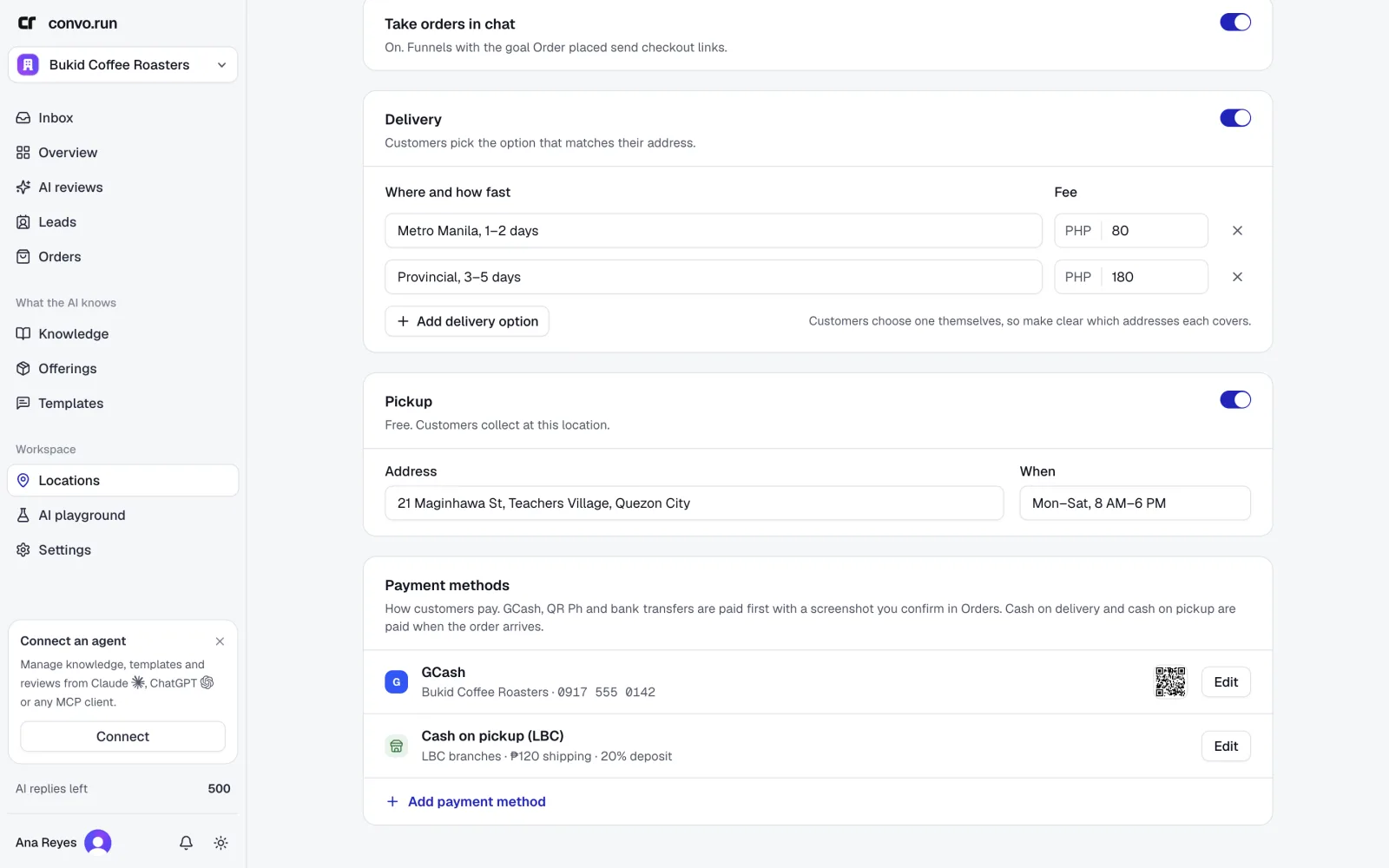
Delivery
Turn on Offer delivery and set the fee. Use one fee for every order, or choose Add delivery option when the fee depends on the area, for example "Metro Manila, 1–2 days" and "Provincial, 3–5 days". Up to 10 options. With more than one, each needs a name under Where and how fast. Customers pick the option that matches their address, so make clear which addresses each covers.
Pickup
Turn on Offer pickup. It's free. Enter the pickup address and when customers can collect.
Payment methods
Choose Add payment method and pick a type. Up to 8 methods.
| Type | What you enter |
|---|---|
| GCash, Bank, Other | The account name and number, an optional QR code and instructions |
| QR Ph | Your QR Ph code (required). The number is optional. Customers scan it with any bank or e-wallet app, GCash and Maya included |
| Cash on delivery | An optional fee on top of the delivery fee, and an optional deposit. Once per location |
| Cash on pickup | The courier (LBC for now), an optional shipping fee and an optional deposit. Once per courier |
| Layaway | The layaway price, down payment, installments and your terms. Once per location. See Layaway |
| Pay at check-in | An optional deposit. For orders of only stays, so no fee. Once per location, and only where rooms are sold |
QR codes can be PNG, JPG or WebP, up to 5 MB. Workspaces that already had a Maya method keep it. New wallets are added as QR Ph.
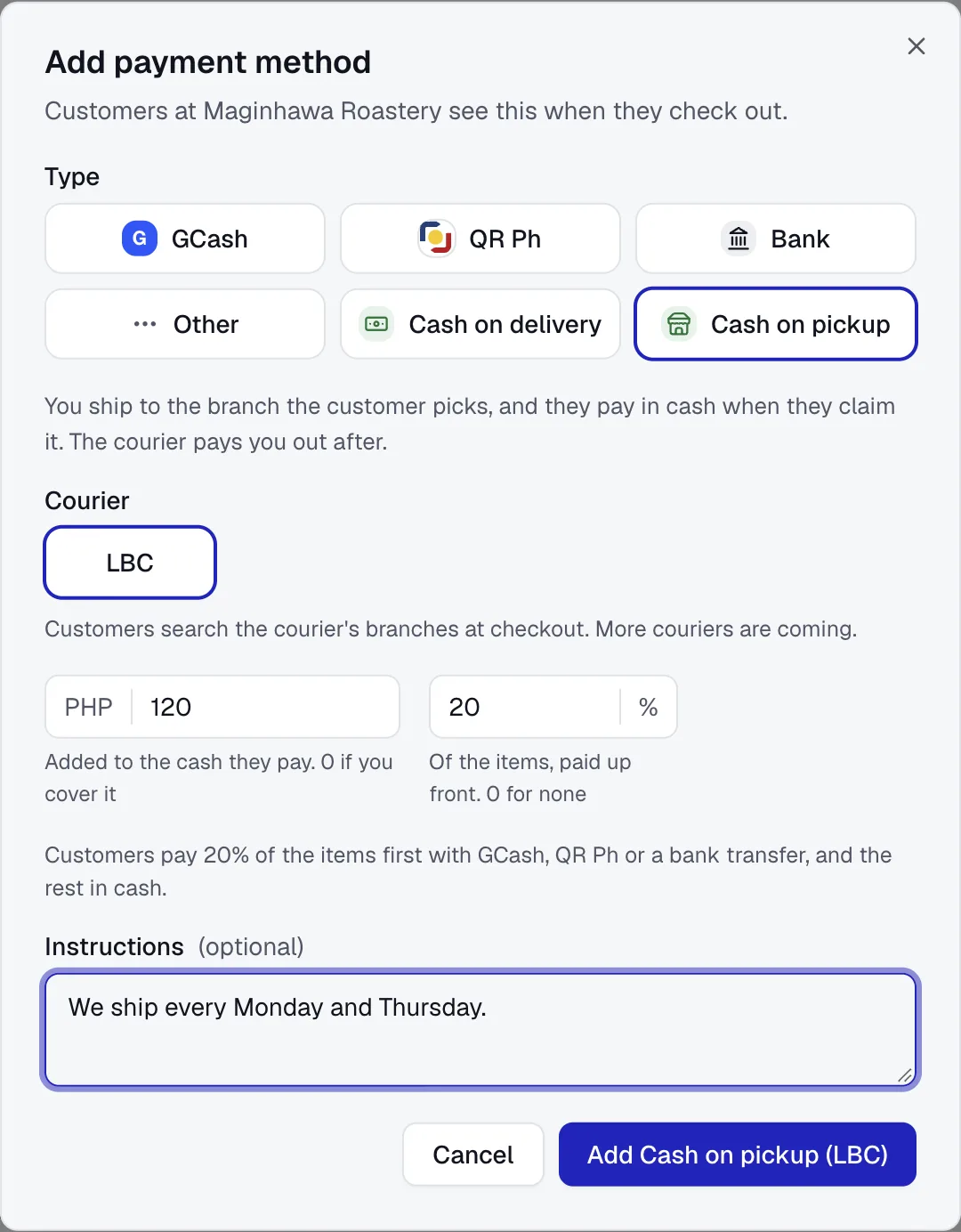
Cash on delivery. Customers pay the rider in cash when the delivery arrives. Cash on pickup. You ship to the courier branch the customer picks, and they pay in cash when they claim it. The courier pays you out after. Pay at check-in. Guests booking only rooms pay at the property when they check in. You confirm the booking first and mark it Checked in and paid when they arrive, or Didn't arrive to free the rooms. Orders with anything other than stays can't use it. With a deposit, you can make the rest due some days before arrival instead of at check-in, such as 3 days before. The guest pays the deposit, then sends the rest the same way by that day. On the day, they get a reminder in the chat and you get a notification. Mark it Rest paid on the order once it's in; the guest moves to Won. Guests booking later than that pay in full up front.
A deposit is a share of the items, from 1% to 90%, paid up front by wallet or bank with a screenshot. Fees are part of the cash balance, not the deposit.
Take orders in chat
Turn on Take orders in chat once customers have a way to pay for everything you offer:
- delivery, pickup, or cash on pickup is set up. A location that sells only rooms needs none of these: GCash, a bank transfer or pay at check-in is enough,
- pickup orders, deposits and layaway need a wallet or bank method,
- delivery needs a wallet or bank method, or cash on delivery.
Removing a method customers depend on turns checkout off.
Prices come from offerings. Only offerings the funnel can sell appear in the checkout. Stock is checked when the customer places the order, but only taken when you confirm the payment or the cash order. If several orders wait for the last items, confirming a later one fails until you update the stock or reject or cancel it.
Checkout and shop links
The AI sends one of two links:
- Checkout link. The basket is already filled with what the customer asked for.
- Shop link. An empty basket on the funnel's catalog, for customers who want to look around or haven't decided. The AI mentions a few highlights and adds the link.
When a guest places a newer link for a stay, it replaces their earlier unpaid links with a stay of any of its room types, so they can't pay an old price or hold rooms for dates they changed. A link that's sent but never placed closes nothing. The old link closes whole, says it was replaced and names the new one. Links with a payment proof waiting, and links without one of those rooms, stay open. The guest's own unpaid links don't count against the rooms free for a new quote.
An empty shop basket that's never used is deleted after 14 days. It doesn't show up in Orders.
What the customer sees
The page shows the location's name and opens in three steps. On a computer, the basket summary stays on the right.
- Basket. The items from the chat, or the catalog for a shop link. The customer can change quantities or add other items the funnel sells. Up to 30 lines, 99 of each.
- Details. Name, mobile number, and how they want it: delivery, pickup, or a courier branch where they pay in cash. A booking of only stays skips this choice and shows the check-in date instead. Delivery customers pick a delivery option if there are several. In the Philippines, the barangay, city and province come from a search ("Kapitolyo Pasig"), and Can't find it? switches to typing. For cash on pickup, they search the courier's branches by mall, street, city or province.
- Payment. If you offer cash on delivery, pay at check-in or layaway, the customer first chooses Pay now, Cash on delivery (or Pay at check-in for a stay) or Layaway. To pay now, the customer picks a method, pays in their own app and uploads a screenshot (PNG, JPG, WebP or HEIC, up to 10 MB). Cash without a deposit is placed right away, without a screenshot. With a deposit, they pay the deposit and the page shows the cash balance.
The customer gets a chat message when their screenshot arrives, and again when you confirm. Afterwards the same link shows the order's status.
Orders
Orders in the sidebar lists orders by stage. The badge shows how many need confirming. The Overview page shows them too.
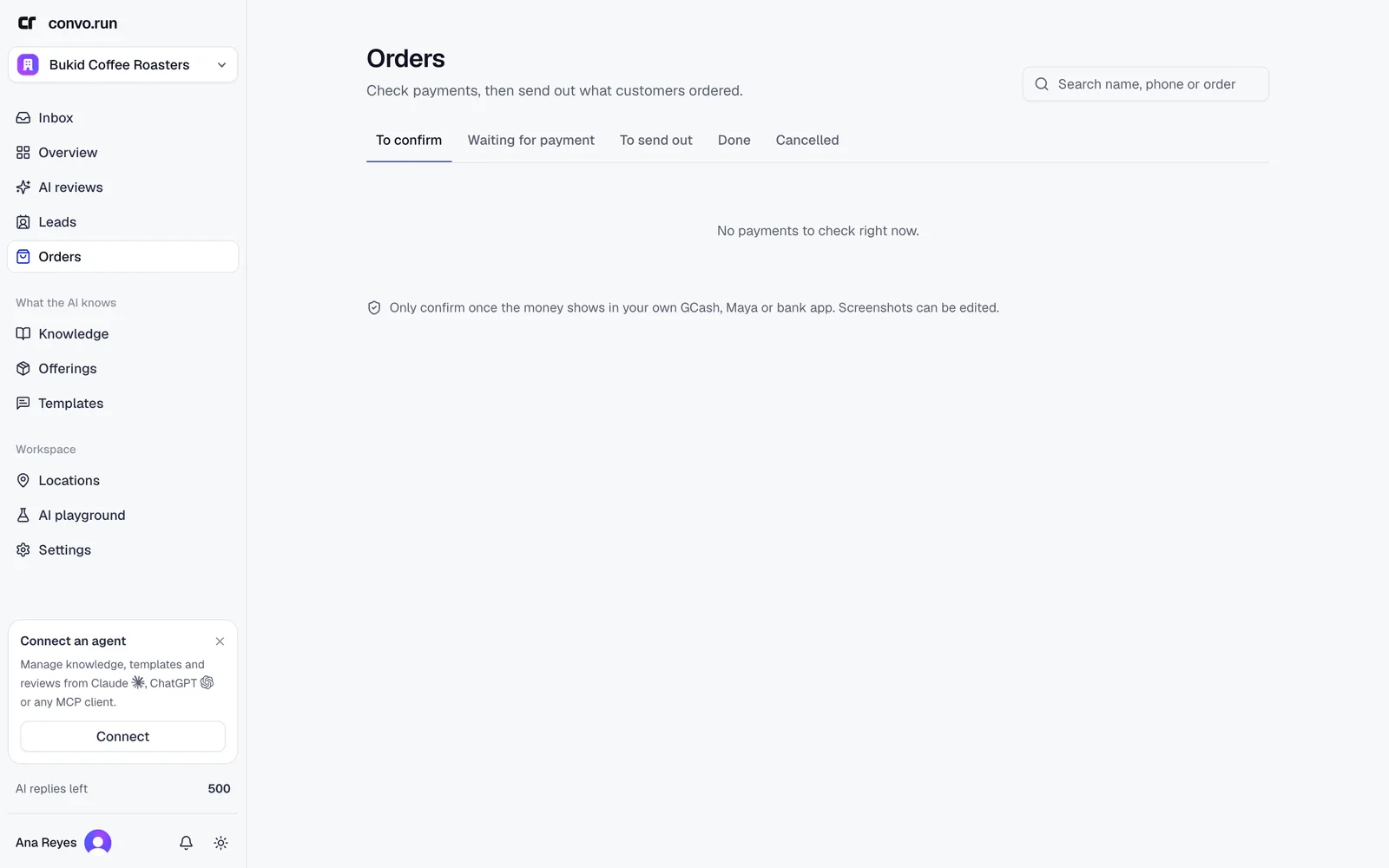
| Tab | What's there |
|---|---|
| To confirm | Payment screenshots, deposit proofs, new cash orders and layaway payments |
| Waiting for payment | A link was sent or an order placed, no proof yet |
| Layaway | Layaways being paid off |
| To send out | Confirmed, and on its way or waiting for pickup until it's done |
| Done | Finished, including cash orders once the cash is collected |
| Cancelled | Cancelled, rejected, or returned unpaid |
Open an order to see the basket, the customer's details and the payment screenshot.
Paid orders
- Confirm payment once the money shows in your GCash, bank or e-wallet app. Screenshots can be edited, so always check your own account.
- Reject… tells the customer in the chat why the payment wasn't accepted. They can send a new screenshot.
- Mark as paid without proof, in the order's menu, if the customer paid another way.
- Once it's paid, choose Mark as sent out for delivery or Ready for pickup, then Mark done.
Cash orders
- Confirm order, or Confirm deposit once the deposit shows in your account.
- Mark as shipped, with an optional tracking number. The customer gets the branch, tracking number and cash balance in the chat.
- Cash collected once the rider or courier pays you. The lead moves to Won.
- Mark as returned if the parcel came back unpaid. Stock goes back and the lead moves to Lost.
Cancel an order from its menu until it's paid, or a cash order until it ships. If the customer already sent a payment screenshot, add a note telling them why. A cancelled cash order that was already confirmed gives its stock back. If a deposit was paid, refund it yourself.
Choose the chat button to open the order's conversation in the inbox.
Layaway
With layaway, the customer pays a down payment, then installments on your schedule. You set the items aside and send them once they're paid in full.
Set up layaway
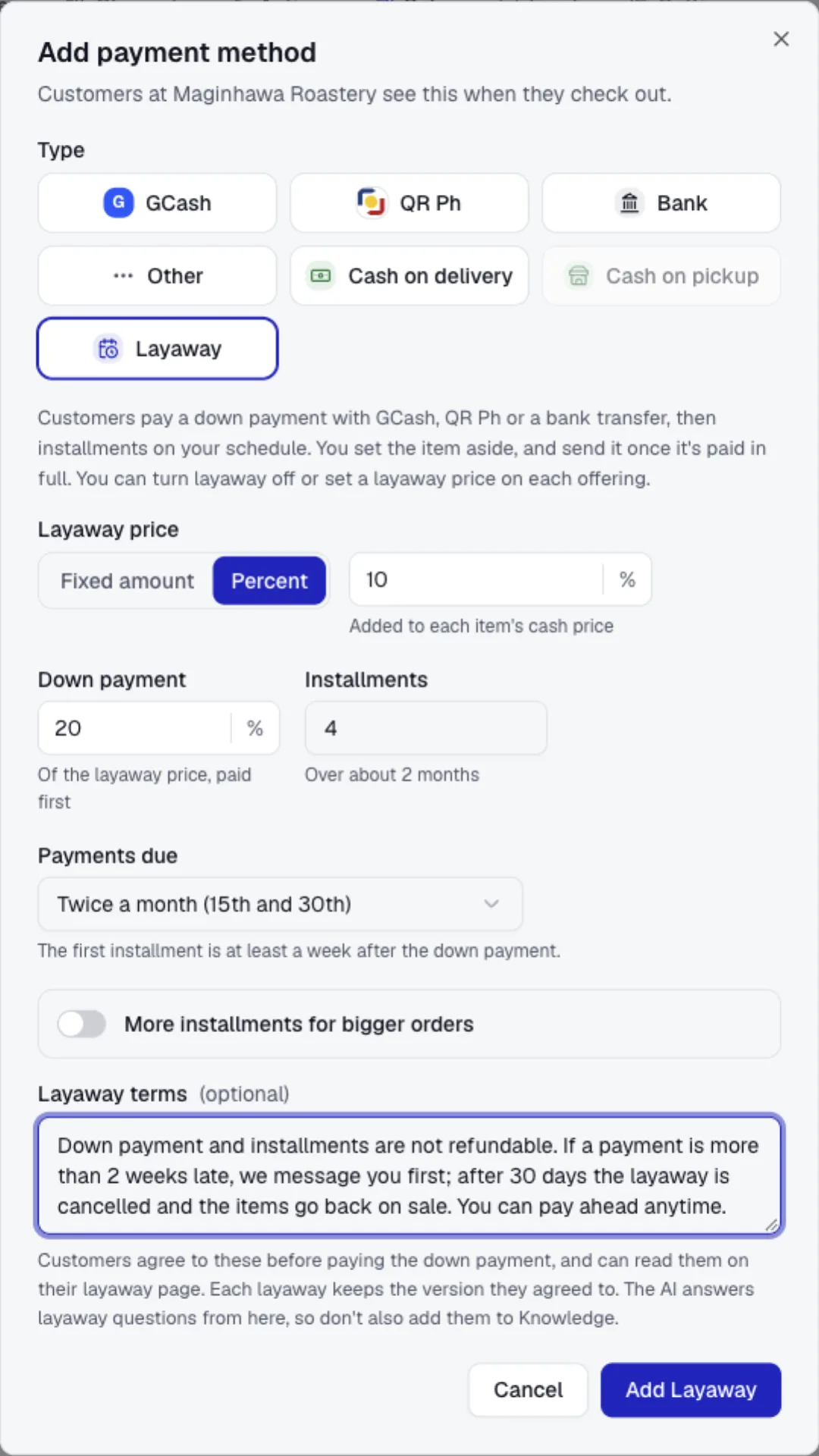
Choose Add payment method and pick Layaway. You need a GCash, QR Ph, bank or other method too, because the payments go there.
- Layaway price. What's added to each item's cash price, as a fixed amount or a percent.
- Down payment. A share of the layaway price, from 1% to 90%, paid first.
- Installments. From 1 to 24.
- Payments due. Twice a month (the 15th and the last day), once a month on a day you pick, every 2 weeks or every week. The first installment is at least a week after you confirm the down payment.
- More installments for bigger orders. Optional. From a cash price you set, orders get a different number of installments.
- Layaway terms. Optional, up to 2,000 characters, in your own words: what happens if a payment is late, refunds, and so on. Customers agree to them before they pay the down payment, and each layaway keeps the version they agreed to. The AI answers layaway questions from them, so don't repeat them in knowledge.
Convo.run doesn't send payment reminders or apply penalties. Late installments are marked overdue, and your terms say what happens next.
Each offering can turn layaway off or set its own layaway price. See Offerings.
What the customer sees
The shop and basket show each item's layaway price. At payment, the customer chooses Layaway, sees the down payment and the installments, ticks that they agree to your terms, and sends a screenshot of the down payment. Layaway isn't offered when an item is off layaway or for cash on pickup. Delivery is paid with the last installment.
Afterwards, the same link shows a statement: what's paid, the schedule, the next due date, and the terms. The customer sends each installment there with a screenshot.
Manage layaways
Down payments arrive in To confirm.
- Confirm down payment takes the stock, sets the items aside and starts the schedule. The customer gets the next due date in the chat.
- Reject… puts the order back to waiting for payment, so the customer can choose again.
The order then moves to the Layaway tab, which shows what's paid, the next due date and overdue layaways. Installments the customer sends also show in To confirm. On the order:
- Confirm or Reject each installment. Rejecting tells the customer why.
- Record payment for money that came in another way, such as cash at the shop. It counts as confirmed right away. Add a reference number if there is one.
- Void a confirmed payment entered by mistake. It stays in the list, crossed out, and the customer isn't messaged.
- New statement link makes a new link for the customer. The old one stops working.
When it's paid in full, the order moves to To send out and the lead to Won. Cancel layaway… puts the items back in stock and moves the lead to Lost. Refund or keep what was paid as your terms say.
Import layaways
If you track layaways in Peddlr or a notebook, choose Import layaway on the Layaway tab. Add the customer, the items at their layaway price, what's been paid, each installment and the next due date. Read a receipt screenshot fills the form from a Peddlr receipt or credit summary. Check every field before you save.
Nothing is sent to the customer. Copy the statement link and share it yourself, then link their chat on the order so payment updates go there. Imported layaways don't take stock, don't create a lead and aren't reported to Meta.