Locations
Each location has its own channels, AI agent, reply mode, support hours and actions.
A location is a branch, store or brand that customers message. Use separate locations when branches have different hours, prices, teams or rules. Your plan sets how many active locations you can have.
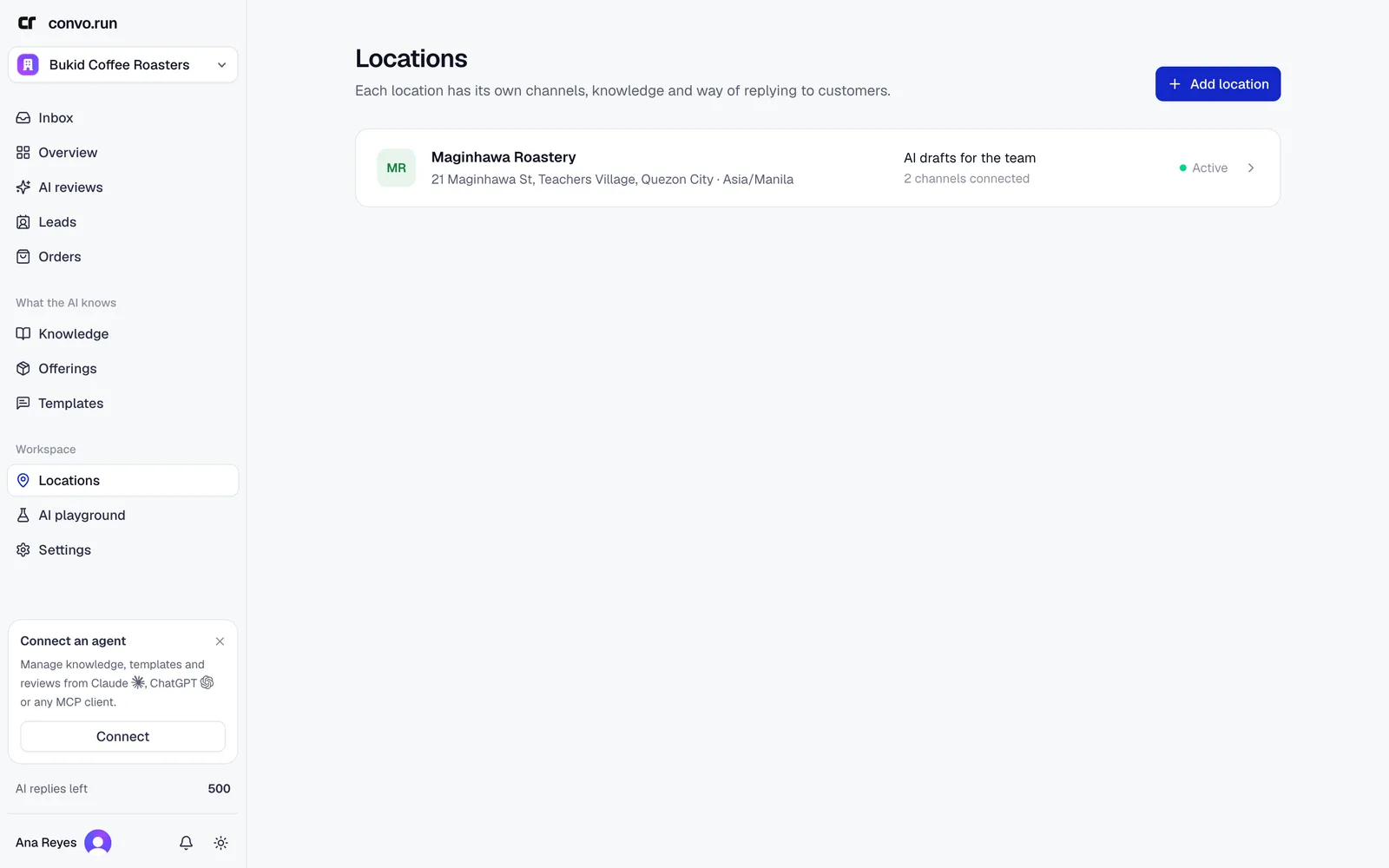
Add a location
Choose Add location and enter the name, timezone, address, website and phone. The timezone is used for support hours and reports.
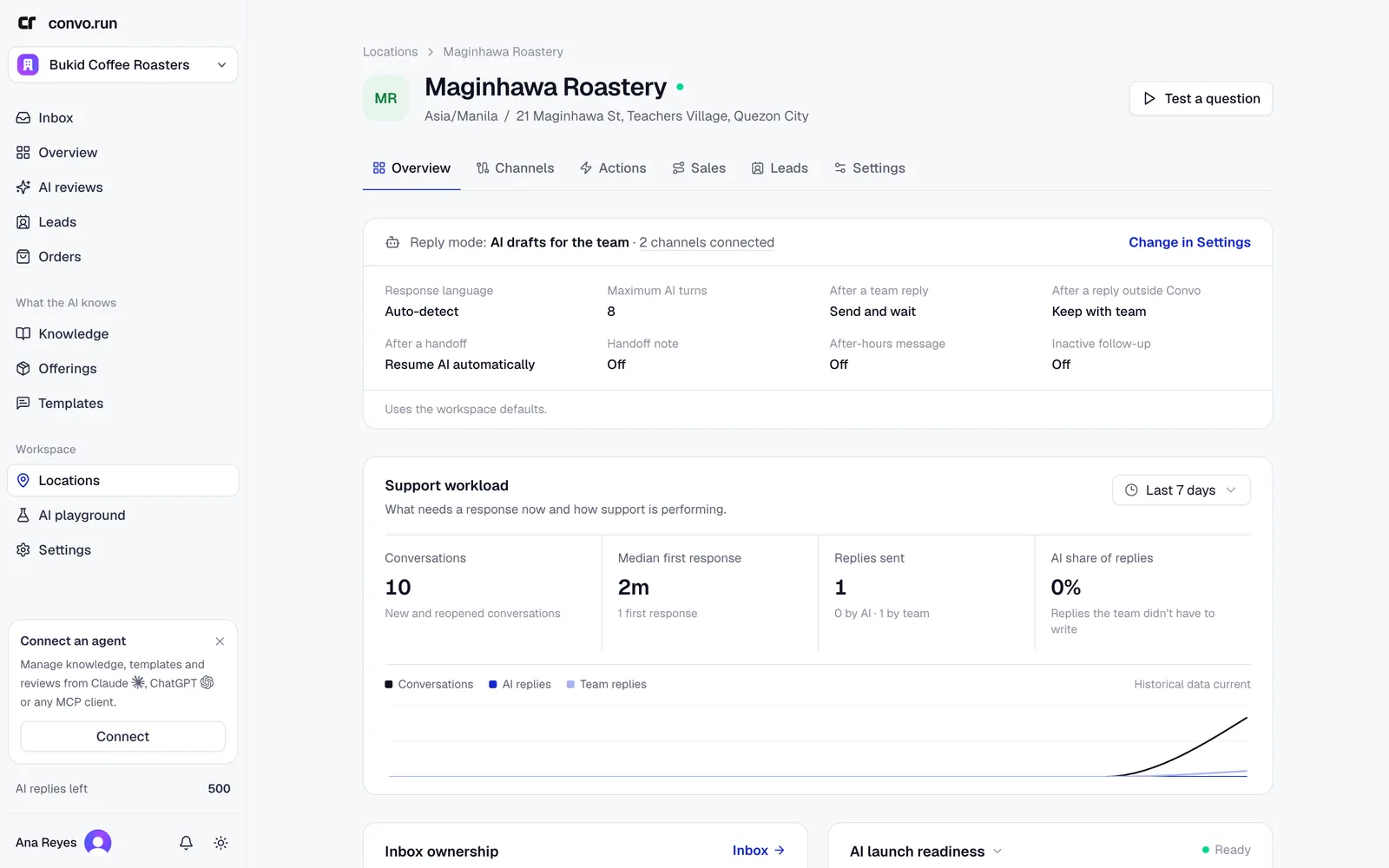
A location page has these tabs:
- Overview. Reply settings, workload, performance and whether the AI is ready.
- Channels. The channels connected to this location.
- Actions. Things the AI can do here, such as booking an appointment.
- Sales and Leads. In workspaces that use sales funnels.
- Settings. Everything below.
Choose Test a question to open the AI playground for this location.
Reply mode
The reply mode decides how much the AI does at this location:
- Team only. Your team writes every reply. The AI doesn't draft.
- AI drafts for the team. The AI drafts every reply and a teammate approves it. Replies your team approves are free.
- Automatic replies. The AI sends replies it's sure about and hands everything else to your team. Each automatic reply uses one reply from your plan.
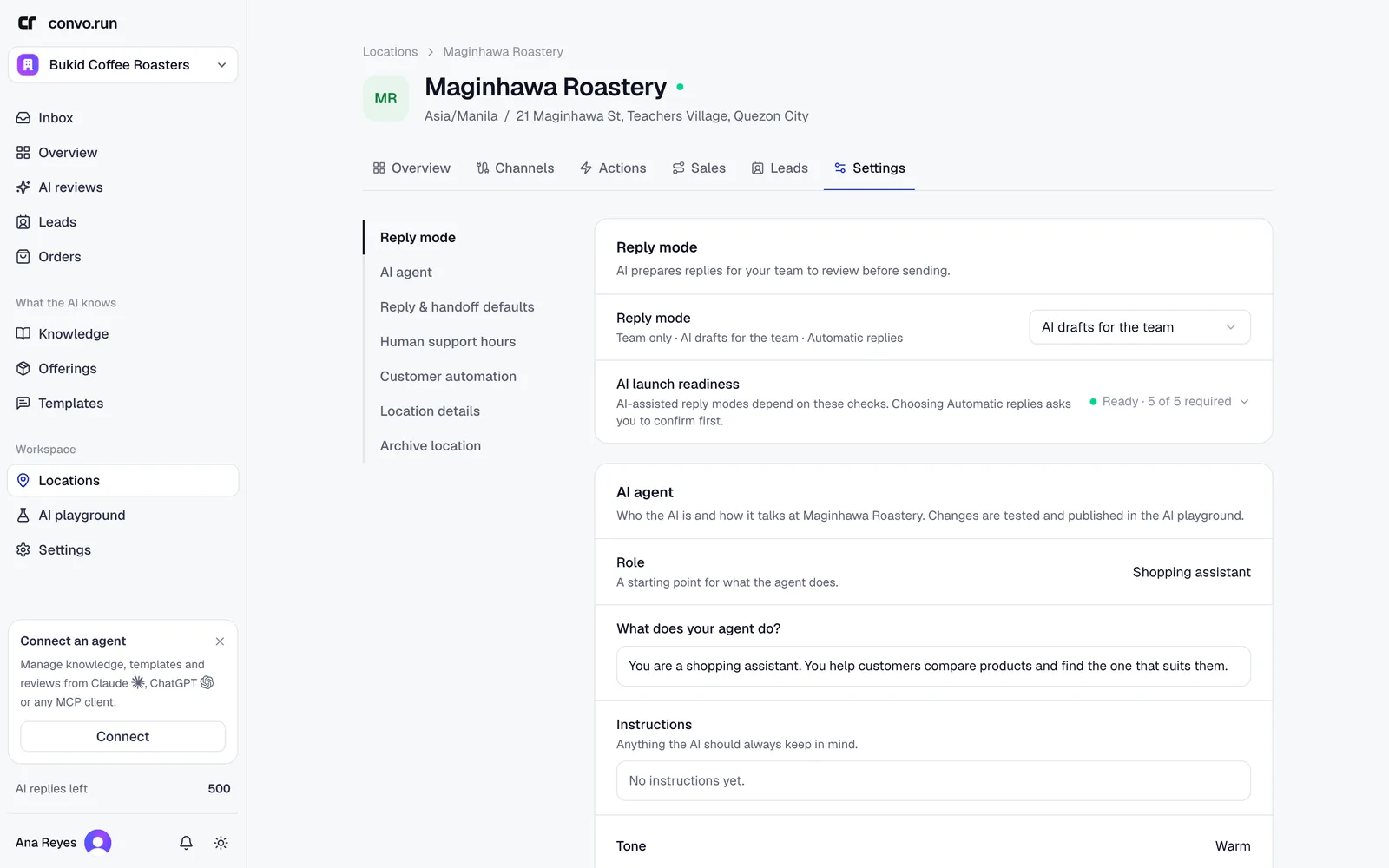
Start with drafts. Switch to automatic replies once drafts are right. Convo.run asks you to confirm before turning on automatic replies.
WhatsApp only supports AI drafts. On a WhatsApp channel, a teammate approves every AI reply, even when the location uses automatic replies.
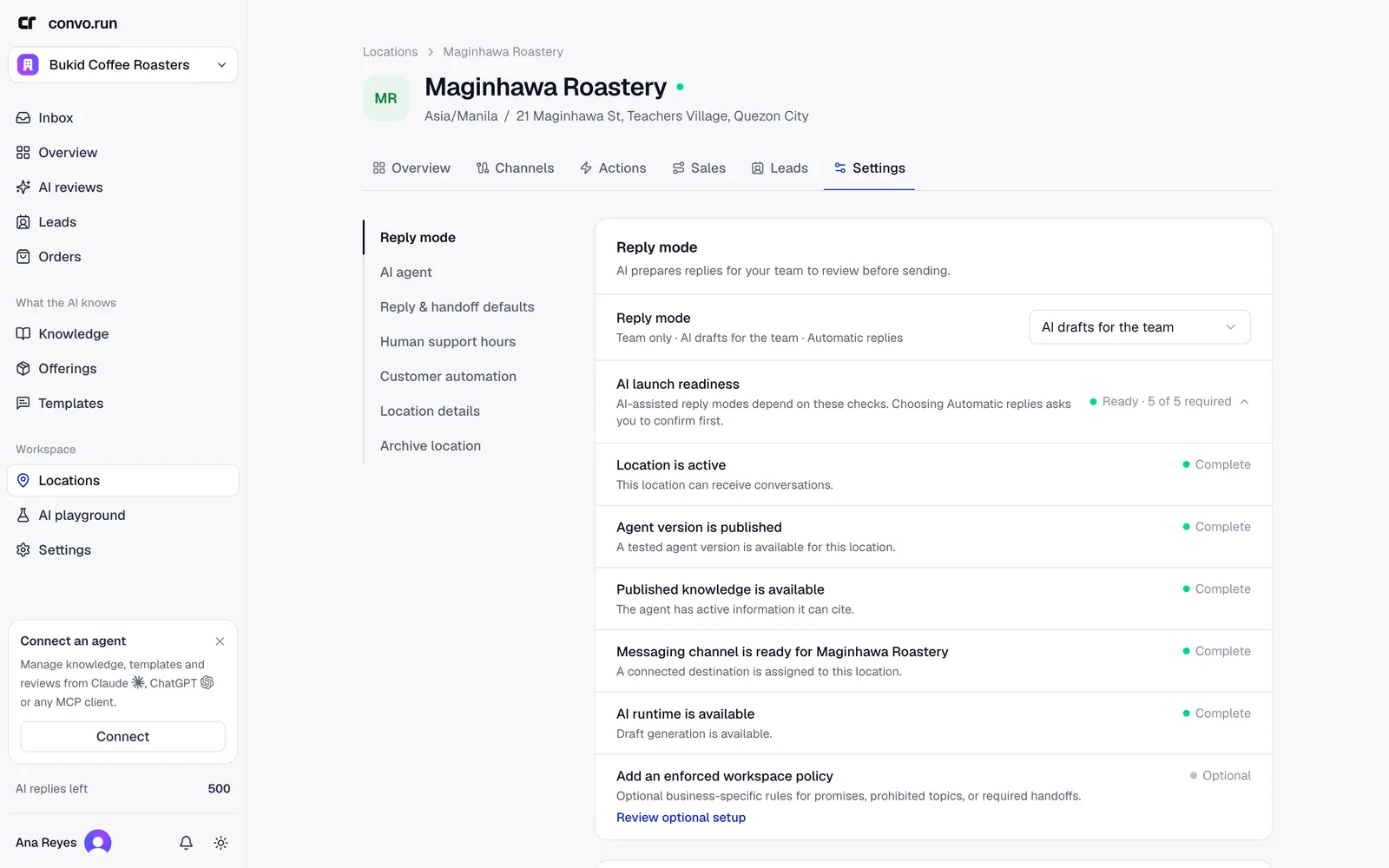
AI launch readiness
The readiness list shows what the AI needs before it can draft or send at this location, including:
- the location is active,
- an AI agent version is published,
- published knowledge is available,
- a channel is connected and ready.
Each unfinished check links to the place to fix it.
AI agent
The location's role, instructions and tone. They're shown here read-only. Change them in the AI playground, where you test before publishing.
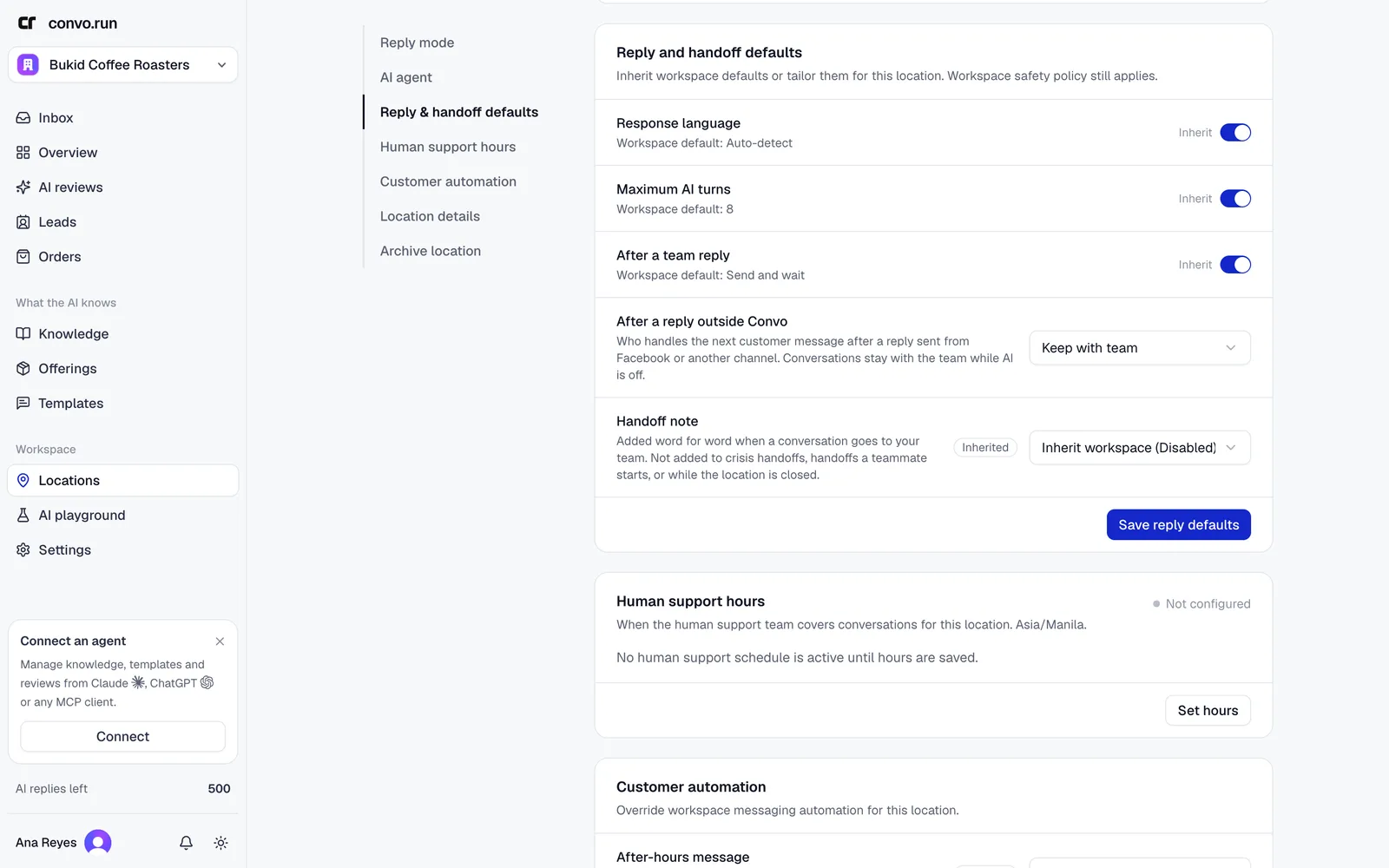
Reply and handoff defaults
Each of these follows the AI policy default unless you override it for the location:
- Response language. Auto-detect, or a fixed language.
- Maximum AI turns. How many replies the AI sends before handing off. The default is 8.
- After a team reply. Send and wait, Send and return to AI, or Send and resolve.
- After a reply outside Convo. What happens when someone replies from the channel's own app, such as the Facebook Page inbox. Keep with team stops the AI until your team hands the conversation back. Return to AI lets the AI answer the next message.
- Handoff note. Text added word for word to handoff messages, such as a phone number for urgent requests. Up to 300 characters. It isn't added to crisis handoffs, handoffs a teammate starts, or while the location is outside support hours.
Automatic replies
Shows whether automatic replies are active, paused at this location, or paused for the whole workspace. To pause this location, give a reason so other admins know why. A workspace-wide pause is lifted from AI policy.
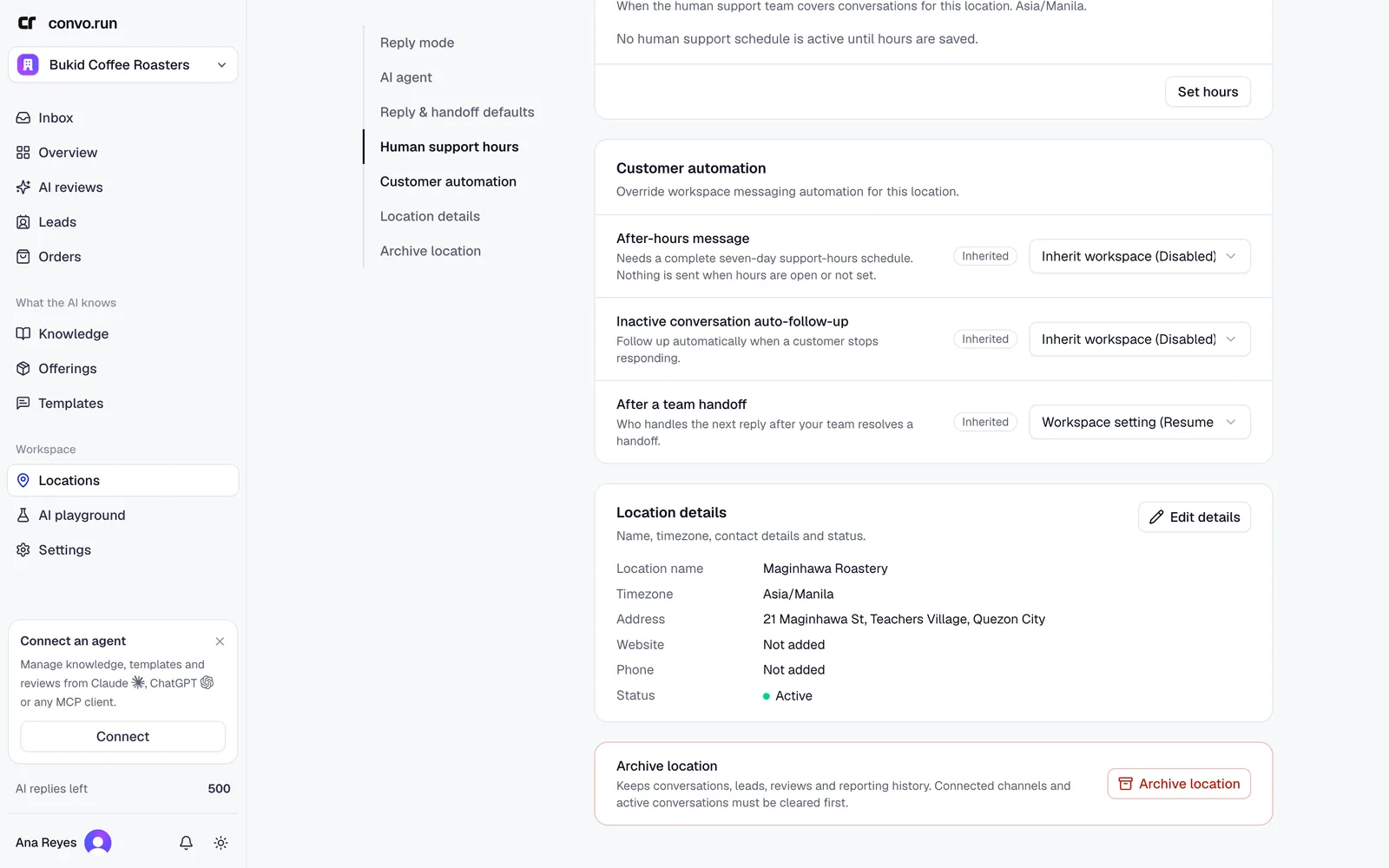
Human support hours
When your team covers conversations, in the location's timezone. Set all seven days before you turn on after-hours messages. Overnight shifts are fine.
Customer automation
Each setting follows the workspace default unless you override it:
- After-hours message. Sent when a customer writes outside support hours.
- Inactive conversation auto-follow-up. A follow-up when a customer stops responding, and an optional closing message when the conversation is resolved for inactivity.
- After a team handoff. Whether the AI starts answering again after your team resolves a handoff, or stays off.
Actions
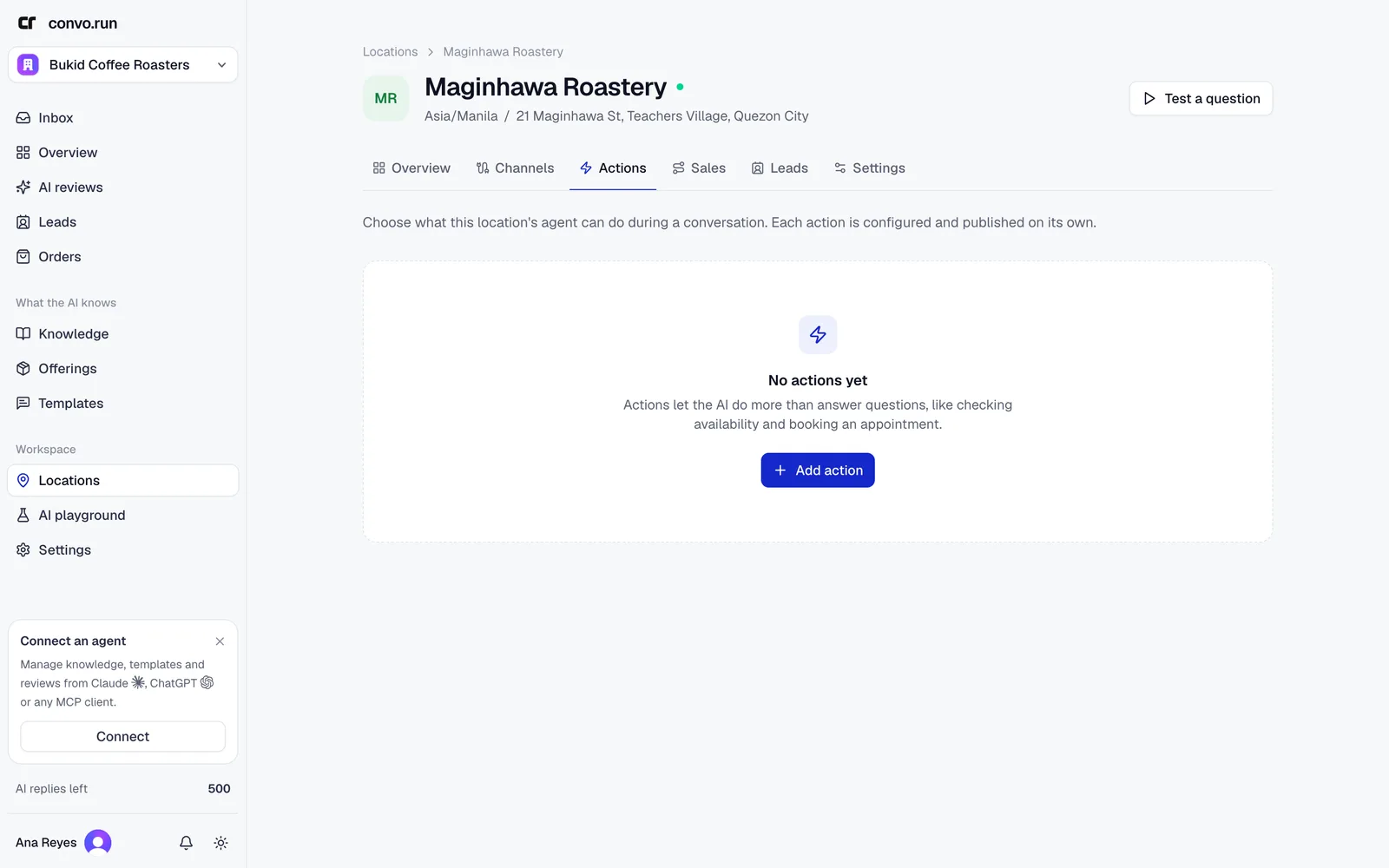
Actions let the AI do more than answer. Cal.com is available today: the AI checks availability and books an appointment in the chat after the customer confirms.
- Open Actions and choose Add action, then Cal.com.
- Enter the action name, when to use it, and your Cal.com event URL, for example
https://cal.com/username/event-name. - Choose the channels and Publish changes.
Inactive and archived locations
An inactive location keeps its history and settings, but the AI doesn't reply there. Reactivating it counts against your plan.
To archive a location, use Archive location at the bottom of Settings and type the location's name to confirm. First disconnect its channels, resolve active conversations and wait for pending replies to send. Archiving keeps conversations, leads, reviews and reports. It turns off the AI, pauses website chat and disables actions. Choose Archived on the Locations page to find it, and Restore location to bring it back. Channels and actions stay off until you turn them on again.