Channels
Connect Messenger, Instagram, WhatsApp, TikTok, email and website chat to the right location.
Channels bring customer messages into the inbox. Each channel belongs to one location, which decides the AI agent, content and settings used for its conversations. Only owners and admins connect and manage channels.
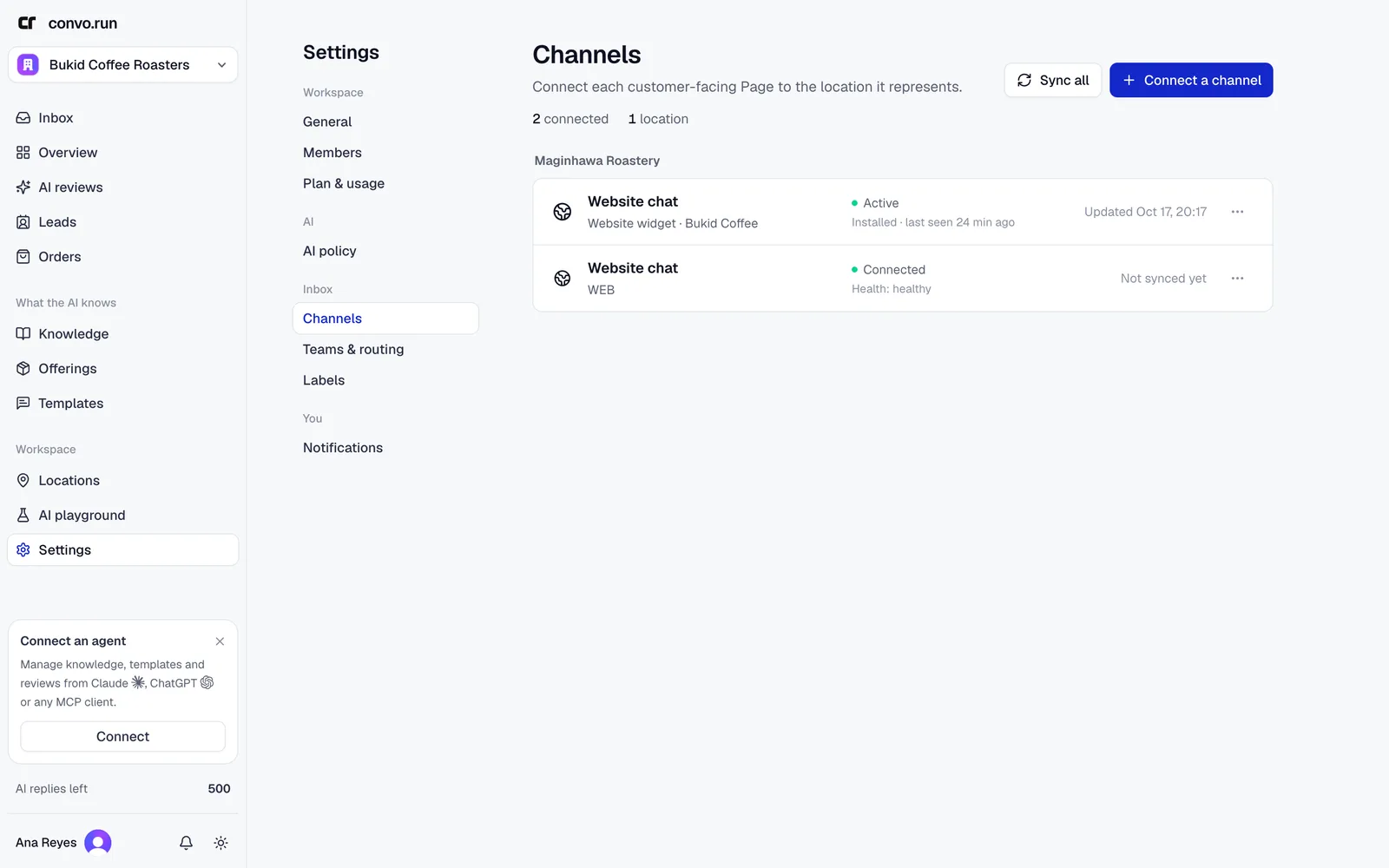
Supported channels
| Channel | Needs | AI replies |
|---|---|---|
| Website chat | Nothing. Free on every plan | Drafts and automatic |
| Facebook Messenger | A Facebook Page you manage | Drafts and automatic |
| Instagram Direct | An Instagram Business or Creator account | Drafts and automatic |
| WhatsApp Business | A WhatsApp Business account | Drafts only |
| A Gmail, Google Workspace, Outlook or Microsoft 365 mailbox | Drafts and automatic | |
| TikTok direct messages | A TikTok Business account outside the EEA, Switzerland and the UK | Drafts and automatic |
Messenger, Instagram, WhatsApp, TikTok and email need an active plan. Each one counts as a connected account, and each mailbox counts separately. Website chat doesn't count. See Plans and billing.
Connect a channel
- Open Settings → Channels, or the Channels tab of a location.
- Choose Connect a channel and pick the channel.
- For social channels, sign in with the account that manages the Page or business account and approve access. For email, choose Gmail or Outlook and sign in to the mailbox.
- Choose the location the channel belongs to.
- Send a test message and check that it appears in the inbox.
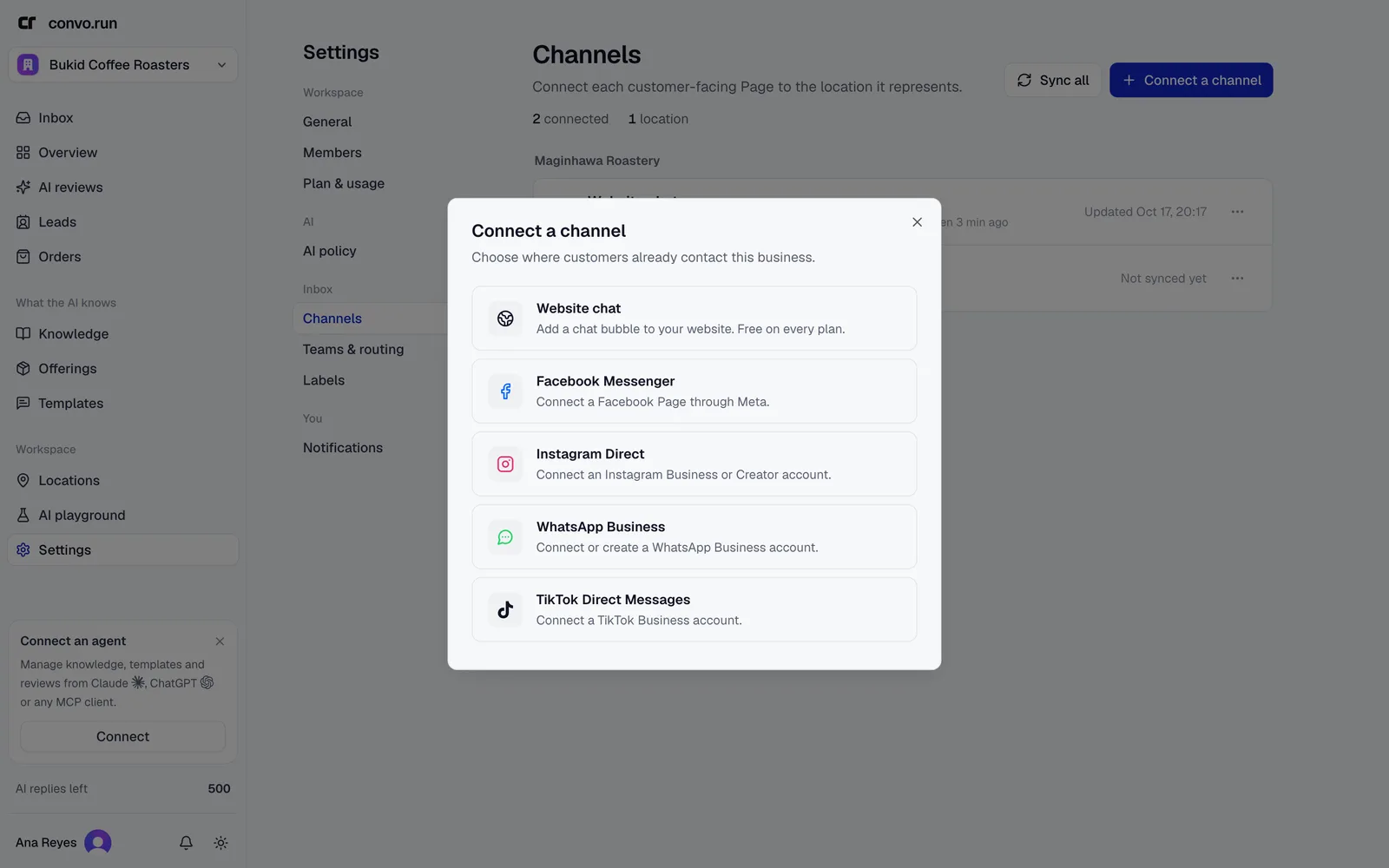
Connect each Facebook Page or Instagram account separately. For website chat, see Website widget.
Connect a Gmail, Google Workspace, Outlook or Microsoft 365 mailbox, such as
[email protected]. Other mail providers, such as Zoho or Yahoo, can't be connected yet.
Replies go out from that mailbox, so they show up in its Sent folder, and replies your
team writes in the mail app are added to the conversation.
- Signature. Each mailbox needs a signature, such as your team name and contact details. It's added below every email from the mailbox, whether your team or the AI writes it. The AI never writes its own sign-off. Until a signature is saved, replies can't be sent and the AI doesn't draft. Change it with Email signature in the channel's menu.
- One conversation per customer. Each customer email address gets one conversation, like a chat thread. Replies keep the customer's subject. Only the newly written part of an email is shown, without quoted history.
- No old email. Email from before you connected the mailbox isn't imported. Send a new email to test it.
- Files. Customers can send up to 10 files per email. Your replies can attach JPG, PNG, WebP, PDF or text files up to 10 MB each (3 MB from Outlook mailboxes) and 15 MB in total.
- Sending limits. A mailbox can send up to 200 emails a day from Gmail, 500 from Google Workspace and 1,000 from Outlook or Microsoft 365.
- One location. A mailbox serves one location. To use it for another location, disconnect it and connect it again from that location.
Filtered email
Not every email is from a customer. Convo.run keeps these out of the inbox and away from the AI, so they don't use AI replies:
- Newsletters, notifications, auto-replies, mailing lists, no-reply senders and email in Gmail's Promotions, Social, Updates and Forums tabs. Spam is ignored completely.
- Email from new senders that isn't from a customer, such as sales pitches, suppliers, invoices or job applications. The first email from someone new is checked before it reaches the inbox. When in doubt, it goes to the inbox.
Admins can review this email under Filtered email in the mailbox's menu. It's a customer moves the sender's email into the inbox and lets their future email through. In a conversation, Not a customer blocks the sender or, for a company address, everyone at their domain.
Reply windows
Messaging apps limit when a business can reply:
- Messenger, Instagram and WhatsApp. Replies are possible for 24 hours after the customer's latest message.
- TikTok. Customers must write first. You can reply for 48 hours after their latest message, with up to 10 messages per customer message. Automatic replies stop after 7, so your team always keeps the last 3. Attachments must be JPEG or PNG images up to 3 MB.
The AI won't send follow-ups or closing messages after the window closes. Email and website chat have no reply window.
Manage a channel
From the menu on a channel row:
- Sync channel refreshes account details from the provider.
- Move to location moves a connected social channel to another location. It stays connected. New messages and its existing conversations move too, and the AI answers them with the new location's knowledge and sales setup. Website chat belongs to its widget's location and can't be moved.
- Pause channel stops processing incoming messages, AI work and replies, without disconnecting. Customers can still write to you. Resume channel fetches the messages that came in while it was paused and processes them. For email, mail from the paused time is added without AI replies, since it may be days old. Catch-up goes back about one week, so check the mailbox itself for anything older.
- Disconnect removes the connection.
- Archive hides a disconnected channel from the list.
If a channel's authorization expired, choose Reconnect from its menu and sign in with the same account.
Pause before changing access
Before changing Page roles or permissions on Facebook or Instagram, pause the channel. Resume only after a test message works again.
Troubleshooting
If a test message doesn't arrive, check that the channel is connected, assigned to the right location and not paused, and that the provider still shows the authorization as active. Reconnect only after checking these, to avoid duplicate setups. See Troubleshooting.