Sales funnels
Let the AI qualify buyers, reach a goal like a booking or checkout, follow up, and report results to Meta.
A sales funnel tells the AI how to handle one kind of buyer: when a conversation is a sale, what to find out, which answers make a lead a poor fit or a hot lead, and the goal. Conversations that match a funnel go on the sales route. Everything else stays on the support route.
What you sell, and at what price, still lives in offerings. Sales settings are per location, on the location's Sales tab: Funnels, Follow-up, Ad results and Checkout.
Create a funnel
Choose New funnel and name it. Fill in each section, then choose Publish. Until you publish, nothing changes for customers. Save draft keeps your changes without publishing. A location can have up to 10 funnels.
Publishing first compares the funnel with your published knowledge, templates and agent instructions. If they disagree, you see what to fix and can fix it first or Publish anyway. The AI hands conflicting topics to your team instead of answering. Funnels are part of the content check from then on.
Pause stops a published funnel from starting new leads and pauses its follow-ups. Customers already in it can still finish. Turn on resumes it.
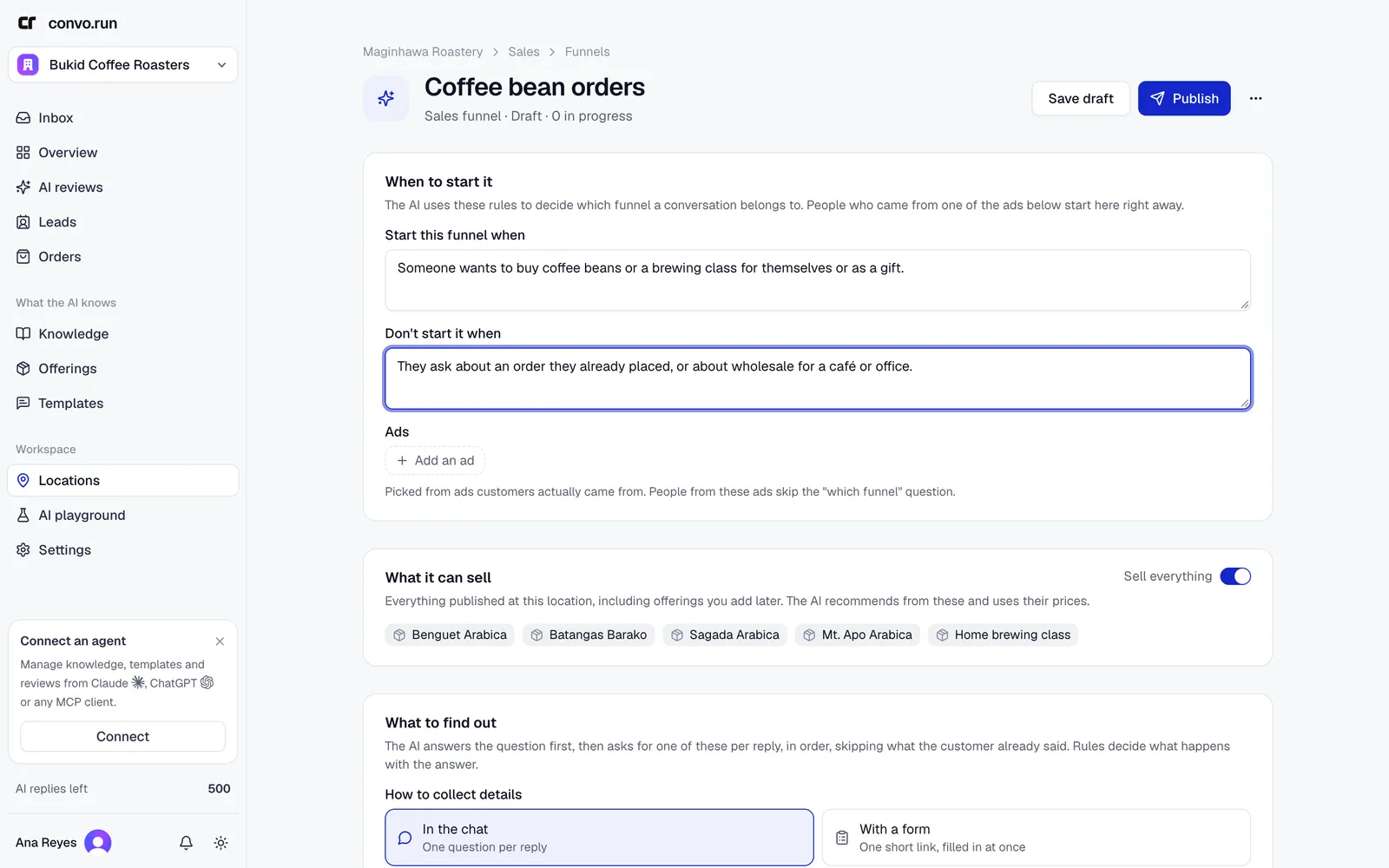
When to start it
- Start this funnel when. Describe the buyer in plain words, for example "someone wants to buy coffee beans or a brewing class".
- Don't start it when. For example "they ask about an order they already placed". That's support.
- Ads. Customers who come from these ads start the funnel right away. Point at an ad to see its image and title.
When it's unclear which funnel fits, the AI asks the customer.
What it can sell
Leave Sell everything on to include every published offering at the location, or pick specific offerings. The AI recommends from these and quotes their prices.
What to find out
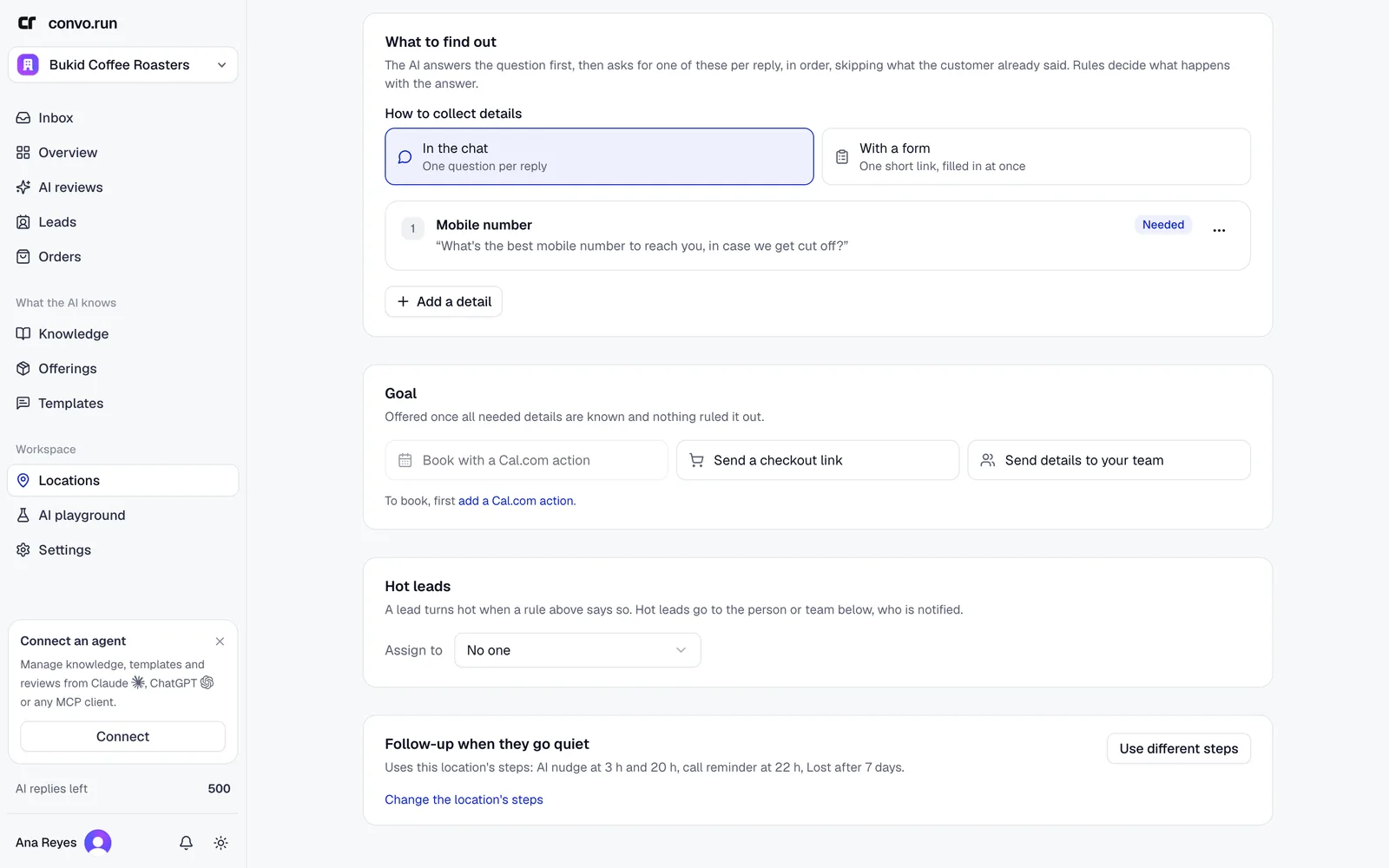
Choose In the chat (the AI asks one question per reply) or With a form (the AI sends a short link the customer fills in at once). In the chat, Ask for all missing details in one message makes the AI send one list instead, with what the customer already said filled in.
Add up to 12 details. For each:
- the kind: text, name, mobile number, email, date, time, number or choice,
- how the AI could ask for it,
- Needed or Nice to know,
- rules that mark the lead Not a fit or Hot lead based on the answer.
Dates can be limited to a number of days ahead, numbers to a lowest and highest answer. A choice takes its options from what the funnel sells, from one offering's versions, or from a list you type (2 to 30 options). Convo.run checks the answers in the chat and on the form, and asks again when one doesn't fit.
The AI answers the customer's question first and skips details the customer already gave. A Nice to know detail never holds up the goal. The AI asks it once while the customer is still choosing, when the answer helps it recommend, and doesn't ask again if the customer skips it.
Goal
What the AI offers once every needed detail is known and nothing ruled the lead out:
- Book with a Cal.com action. Add a Cal.com action first.
- Send a checkout link. The AI sends a link with the basket, or a shop link when the customer wants to look around first. See Checkout and orders.
- Send details to your team. Once every needed detail is known, the AI sends the customer a summary and asks if they want to go ahead. When they say yes, it hands the chat to your team. See Send details to your team.
You can rename the stage shown when the goal is reached, for example "Booked".
With Automatic replies on, the AI can send replies about a new order on its own while the conversation is in a funnel, such as asking "whole bean or ground?". Cancellations, changes to existing orders, payment disputes and refunds still go to your team.
Send details to your team
The summary includes the total when Convo.run can work it out from your offering prices. If the customer changes something before saying yes, the AI sends the updated summary.
-
Message when they confirm. Optional, up to 600 characters: what the AI tells the customer when it hands off, such as what your team does next or what to bring. Empty sends a short thank-you.
-
Use your own wording. Optional: write the messages yourself and they're sent exactly as written. The AI only decides whether the customer's reply confirms.
- Summary message replaces the AI's summary.
- Confirmation question is sent right after it, instead of "Would you like to proceed?".
- What counts as confirming lists the replies that count, like
PAID, paid na, bayad na, booked. Questions, changes and "not yet" never count. Empty means a clear yes. - A photo counts as confirming lets a payment receipt confirm on its own. Your team still checks it.
- Handoff message is sent when they confirm, instead of the message the AI writes.
- Booking link fills in
{{booking_link}}.
Fill in the customer's answers with
{{key}}, using a detail's key (such as{{checkin_date}}), plus{{quote}}for the priced lines and total,{{total}}and{{booking_link}}. A line whose detail isn't known yet is left out. A placeholder that isn't one of the funnel's details can't be saved. If the customer also asks something, the AI answers it first and your message follows. -
Keep answering simple questions until your team replies. After the handoff, the AI still answers questions your published content covers, like parking. Anything else waits for your team. It stops once someone from your team sends a message. Off by default.
If the customer changes a detail after the handoff, the AI tells them it was passed on and the lead shows Changed after handoff. A new request, such as other dates, starts a new lead.
How the AI sells
How the AI sells is optional, up to 1,500 characters: tips the AI follows only while a customer is in this funnel, such as which room to suggest first. Prices still come from your offerings.
Hot leads
Choose the teammate or team that gets hot leads. They're notified.
A lead turns hot when one of your rules says so, and in a team funnel when the details are complete. Hot leads wait in the Hot tab on Leads and under Hot leads only in the inbox filters, the longest wait first. A lead leaves the list once someone from your team replies in the chat.
Follow-up
When someone goes quiet sets what happens if a sales conversation stops before the goal. Each step waits a set time, then:
- The AI sends a nudge with your guidance,
- Remind someone to call, if the customer gave a mobile number, or
- Move the lead to Lost.
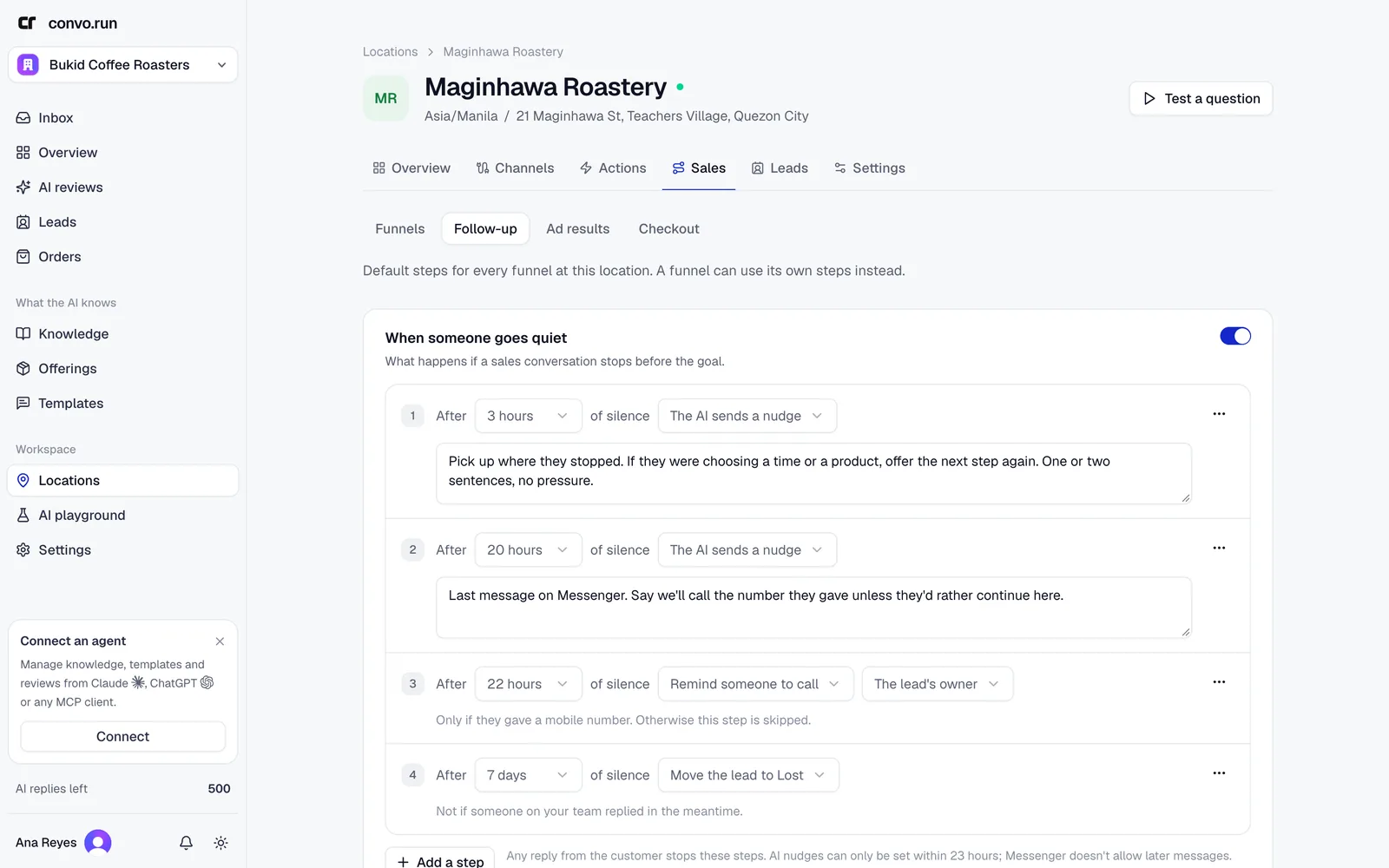
These steps apply to every funnel at the location unless a funnel uses its own. Any reply from the customer stops them. While an AI nudge is due, the location's inactivity follow-up waits, so the customer doesn't get both. AI nudges must be sent within 23 hours of the customer's last message, because Messenger doesn't allow later messages. Up to 6 steps.
Leads
Leads in the sidebar shows everyone on the sales route, by stage:
- Engaged. Talking with the AI.
- Qualified. Shared what the funnel needs.
- Goal reached. Booked, ordered or sent to your team, named after the funnel's goal.
- Won. Marked by your team, or set when you confirm a checkout payment, collect the cash for an order, or a layaway is paid in full.
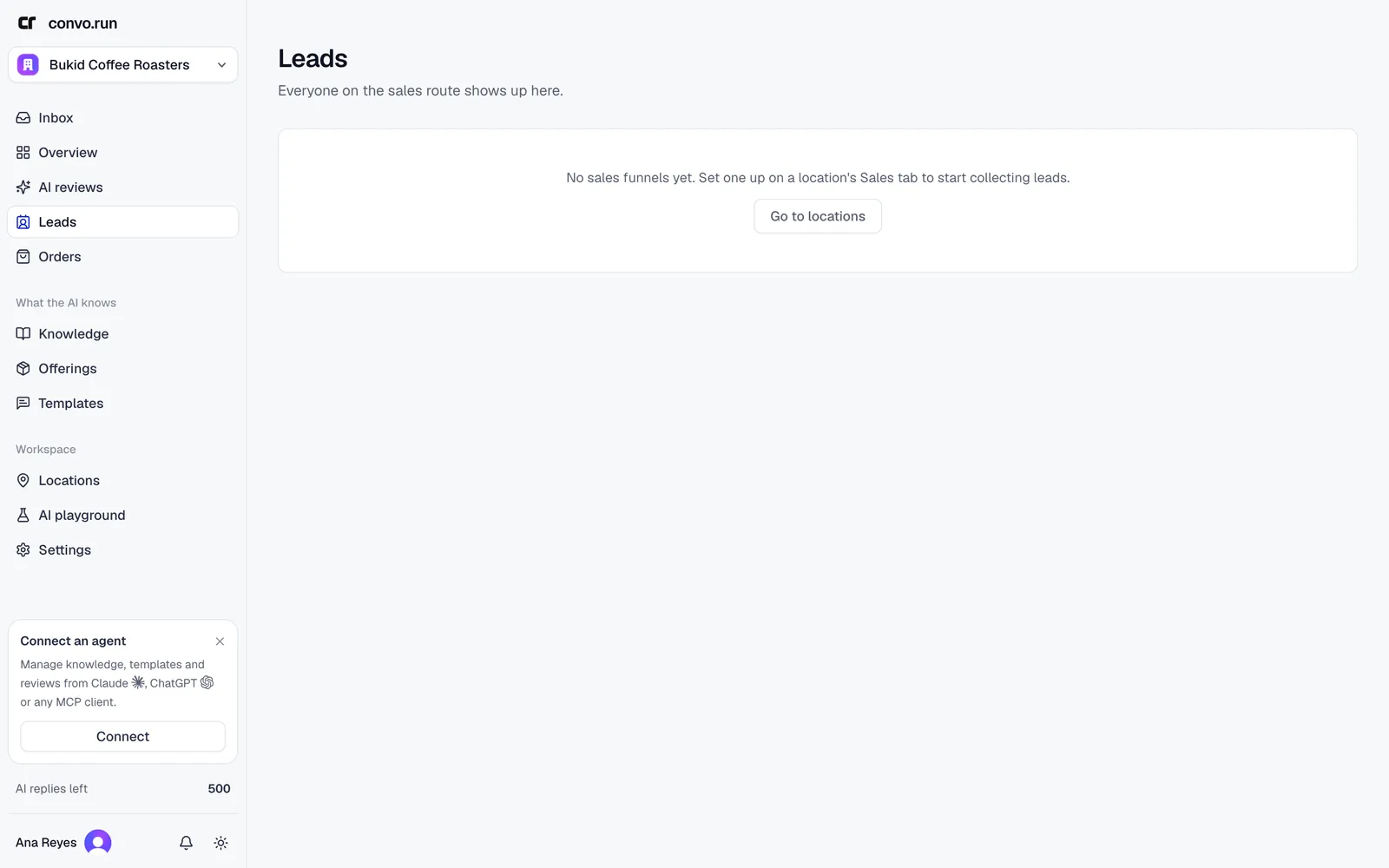
Filter by funnel or ad, and search by name. Drag a card between columns, or use its menu to open the conversation, Mark as won… with the deal value, Not a fit… or Lost…. The Hot tab lists hot leads waiting for your team. The Not a fit and Lost tabs keep those leads.
A customer who buys again gets a new lead for the new purchase. The earlier ones stay in their columns and show in the conversation's sales panel. A returning customer isn't reported to Meta as a new lead, but each order is reported as a purchase.
Ad results
Report results to Meta sends lead events to your Meta ads account, so Meta can optimize for customers who buy and not only those who message. Use one pixel per location.
- Enter the Pixel (dataset) ID and a Conversions API access token from Meta Events Manager. Add a Test event code while testing.
- Choose Save, then Send a test event and check it in Events Manager.
- Under What we tell Meta, choose which stages are sent: Qualified as Lead, Goal reached as Schedule, and Won as Purchase with the deal value. Not a fit is never sent.
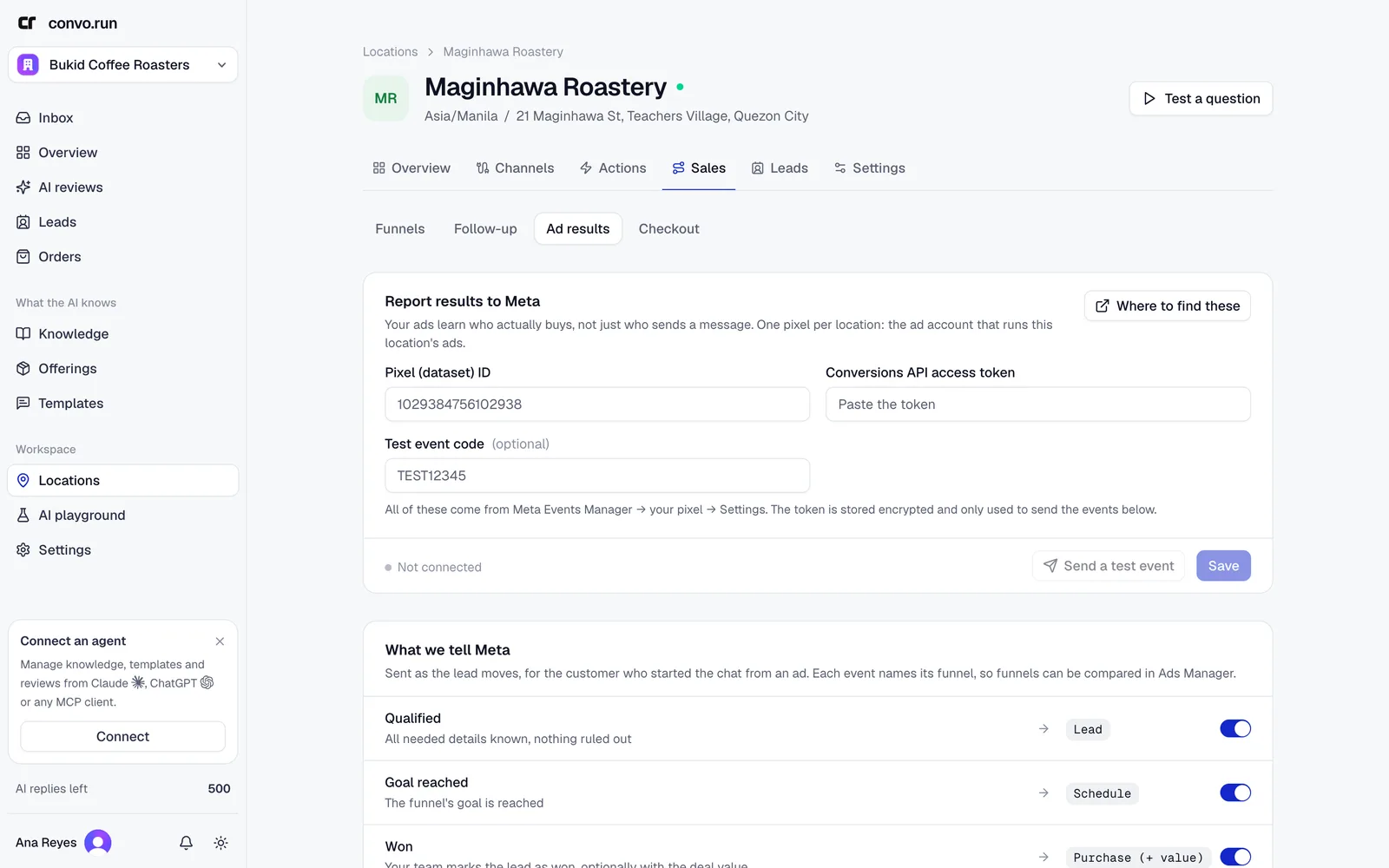
Recent events lists what was sent and whether it failed. The token is stored encrypted and only used to send these events.