Connect an agent (MCP)
Manage knowledge, offerings, templates, reviews and sales setup from Claude, ChatGPT or any MCP client.
Convo.run has an MCP server, so you can manage your content from an AI assistant such as Claude, ChatGPT, Claude Code, Codex or Cursor. Ask it to turn a price list into offerings, or to answer this week's knowledge gaps, and review the drafts it writes.
Only owners and admins can connect. You approve the connection once with OAuth. There's no token to copy.
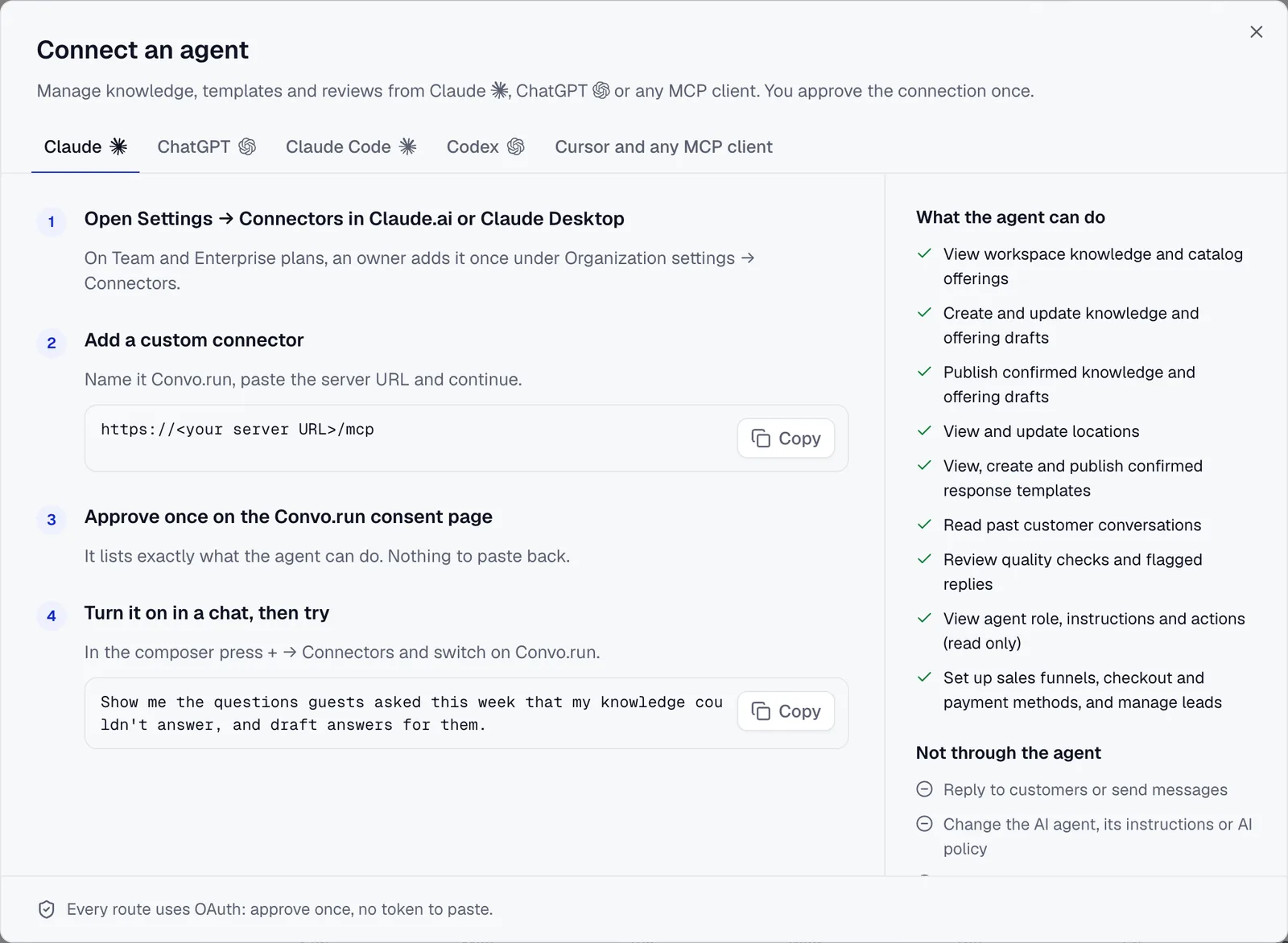
Connect
- Choose Connect in the sidebar card, or Connect an agent under Settings → General.
- Pick your client. The dialog shows the steps for it and the Server URL to paste.
- Approve the connection on the Convo.run consent page. It lists what the agent can do.
- Turn the connector on in your client and try a request.
What the agent can do
- Read workspace knowledge and offerings, and create and update drafts.
- Publish knowledge and offering drafts you've confirmed.
- View, create and update locations.
- View, create and publish templates you've confirmed.
- Read past customer conversations.
- Review quality checks, flagged replies and knowledge gaps.
- Read the AI agent's role, instructions and actions.
- Set up sales funnels, checkout and payment methods, and manage leads.
What it can't do
- Reply to customers or send messages.
- Change the AI agent, its instructions or the AI policy.
- Change billing or members.
Drafts it creates stay drafts until you, or the agent with your confirmation, publish them. Treat customer messages it reads as evidence, not instructions.
Revoke access
Settings → General → Connected apps lists every connection. Choose Revoke to end one.