Templates
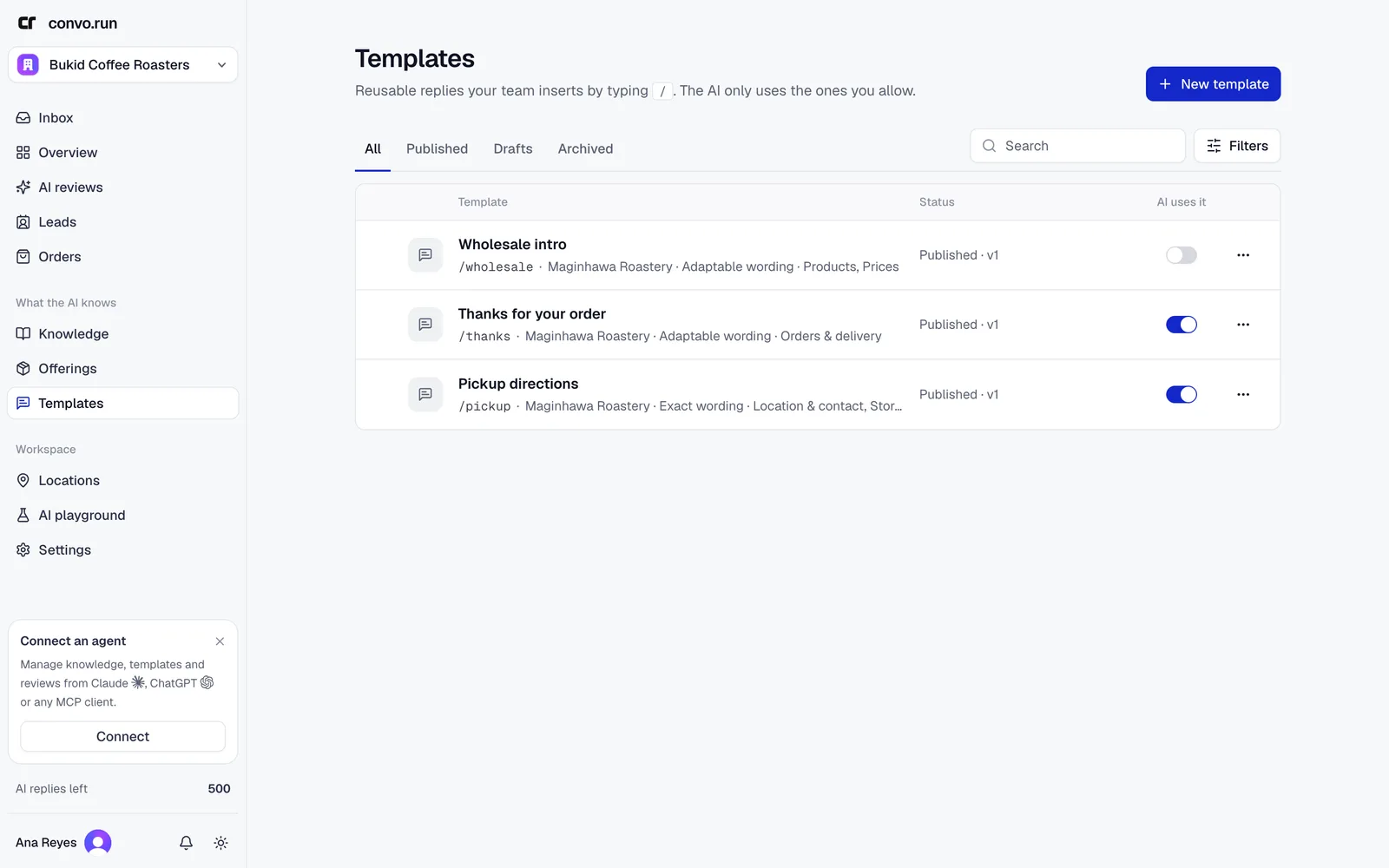
Saved replies your team inserts with /, and the ones the AI may send as well.
Templates are replies your team sends often. Type / in the inbox composer to insert
one. You decide which templates the AI may send, and whether it may change the wording.
Use a template for wording, not for facts. If a template and knowledge state the same fact differently, the AI hands off. Put prices in offerings and use a variable instead.
Create a template
Choose New template and fill in:
- Name and Shortcut, for example
/pickup. - When to use it. Up to 500 characters. The AI reads this to decide when the template fits.
- Message, with optional variables.
- Attachments, up to 5 files of 20 MB each.
- Supported channels: Facebook, Instagram, WhatsApp, Email, Telegram or Web (website chat). Templates aren't used on TikTok yet. On email, attachments can be up to 10 MB each (3 MB from Outlook mailboxes) and 15 MB together, so keep templates you use for email within that.
Choose Review and publish when it's ready. Drafts are visible only on this page.
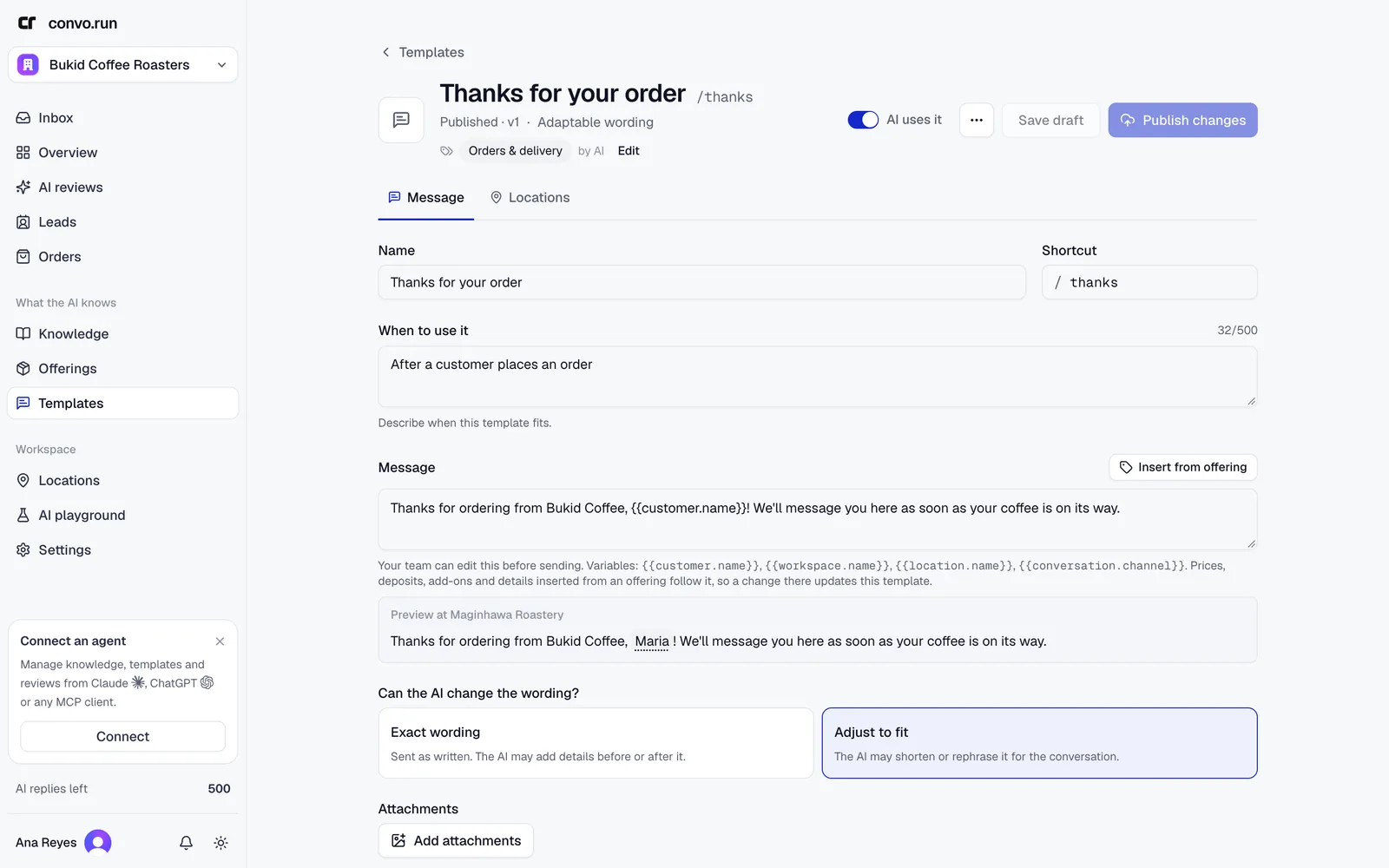
Let the AI use it
Turn on Let the AI use this template, then choose how much the AI may change:
- Exact wording. The AI sends it word for word.
- Adjust to fit. The AI adapts it to the conversation.
- Adjust, keep facts exact. The AI may reword it but keeps the protected facts you list unchanged.
The Who can send it filter shows which templates are team only and which the AI can send.
Location overrides
A workspace template can have a different version at a location. Open the Locations tab, choose Add a location override and edit the message for that location. Reset to workspace removes the override. The AI considers up to 30 templates per location. A workspace can have up to 200.
Variables
| Variable | Inserts |
|---|---|
{{customer.name}} | The customer's name |
{{workspace.name}} | Your workspace name |
{{location.name}} | The location's name |
{{conversation.channel}} | The channel, such as Messenger |
Use the offering search box in the editor to insert an offering's live price, add-on price or attribute. When the price changes in Offerings, every template shows the new price.